Gong
Latest versionGong is a platform for video meetings, call recording, and team collaboration.
Authentication DetailsComposio-managed OAuth available
Frequently Asked Questions
How do I set up custom OAuth credentials for Gong?
Use your own Gong OAuth integration when you want users to see your integration's name on the consent screen and control the credentials yourself. You need a Gong account with access to the Admin center; if you don't see it, ask your Gong workspace admin.
Create the Gong integration
-
Sign in to Gong, expand the left sidebar, and click Admin center at the bottom.
-
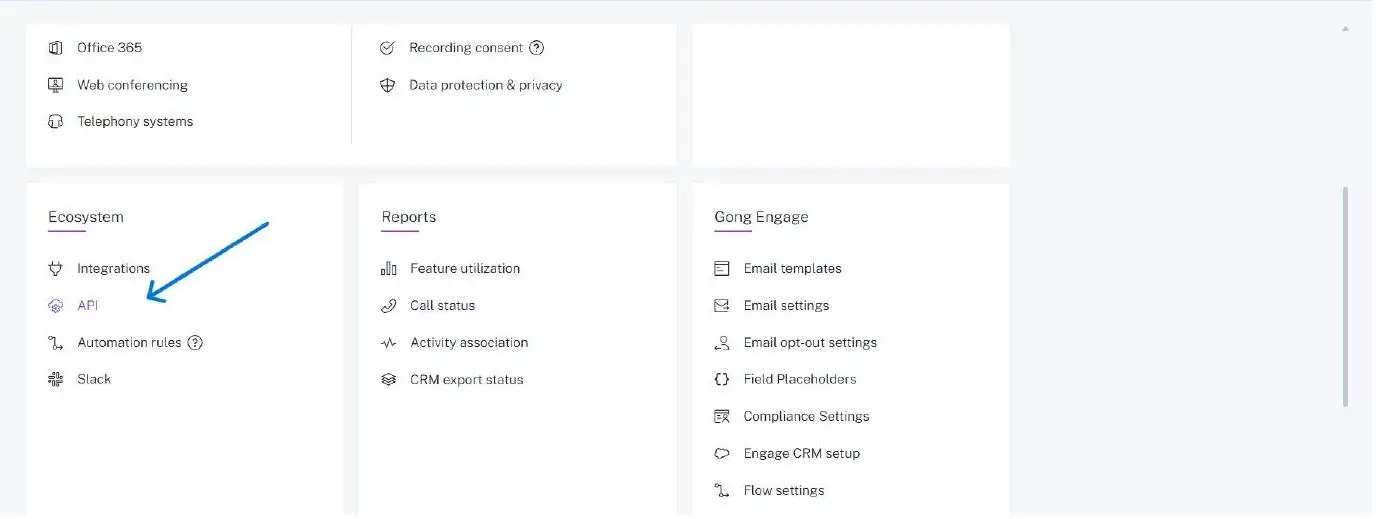
In the Ecosystem section, click API, then switch from the API Keys tab to the Integrations tab. OAuth apps live under Integrations.
-
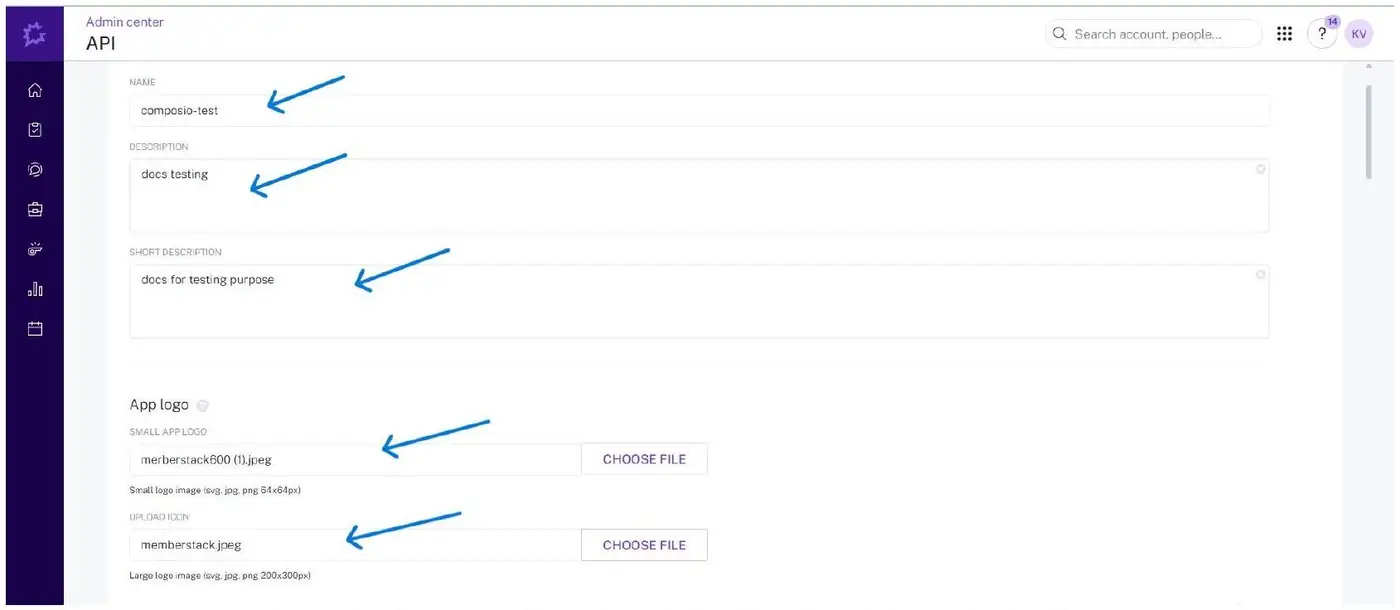
Click Create Integration and fill in the name, description, short description, and logos.
-
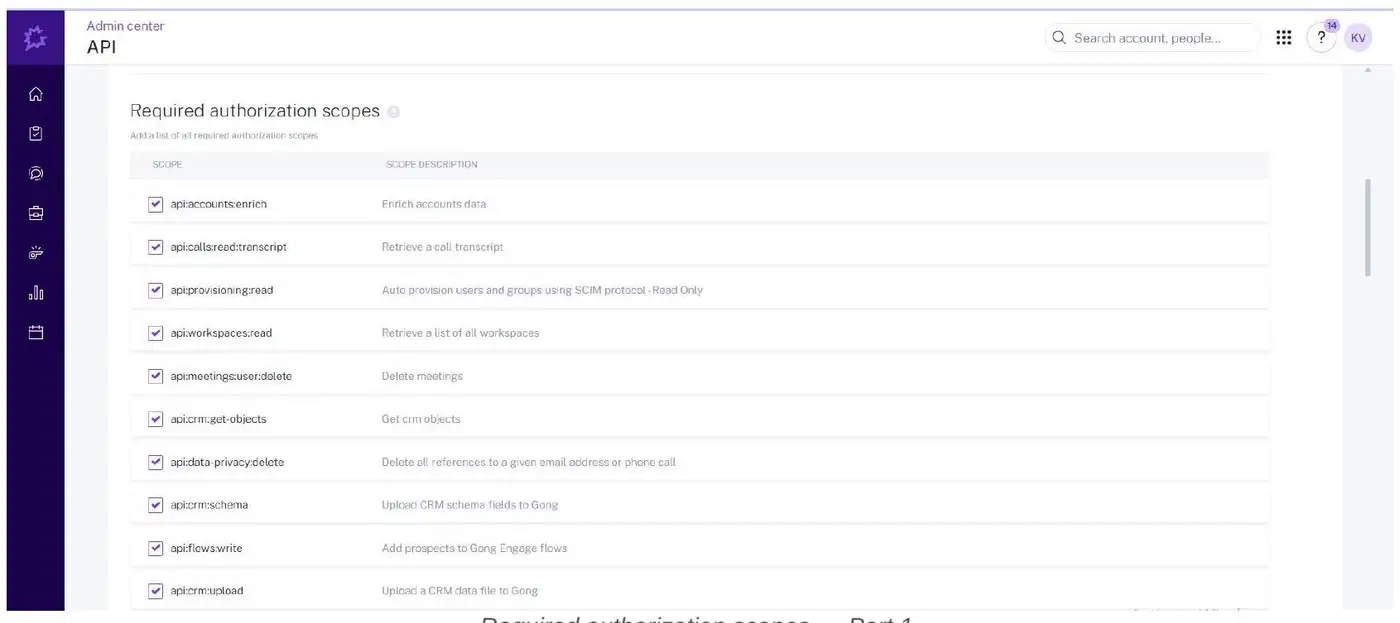
Under Required authorization scopes, select the scopes your integration needs (see Scopes below).
-
In Redirect URI, enter
https://backend.composio.dev/api/v1/auth-apps/addwith no trailing slash. It must exactly match theoauth_redirect_urifield in your Composio auth config. Fill in the remaining required fields (privacy and terms links, help article, contact email, domain). -
Click Save. Back on the Integrations list, copy the Client ID from the table, then click Show secret in the Client Secret column and copy the secret. Store it now; if you lose it, regenerate it from the integration's menu and update your auth config.
-
Add Composio's IP addresses to the integration's trusted IP lists, as described in the IP allowlist question below.
Create the auth config in Composio
-
In the Composio dashboard, go to Auth Configs, click Create Auth Config, and select Gong.
-
Set the authentication type to OAuth2 and choose Use your own developer authentication.
-
Paste the Client ID and Client Secret, enter the same scopes you selected in Gong, then create the auth config.
-
Click Connect Account. When asked for the API base URL, keep
https://api.gong.iounless your Gong admin gives you a tenant-specific address such ashttps://company-17.api.gong.io. Don't use the web app URL from your browser (for exampleus-12345.app.gong.io).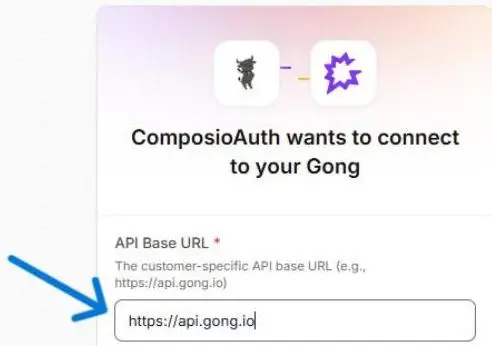
-
Review the permissions on Gong's consent screen, click Allow, and confirm the account shows as Active.
See Custom auth configs for the general flow.
Scopes
The scopes in the auth config must match the scopes selected in the Gong integration. If they differ, authorization fails or tools return permission errors; add any missing scope to both places and reconnect. The default auth config requests a broad set covering calls, meetings, CRM, users, flows, and stats. Common choices include api:calls:read:transcript, api:calls:create, api:users:read, api:meetings:user:create, and api:workspaces:read. Request only what your integration uses, since users see the full list on the consent screen.
Which IP addresses should I allowlist for Gong OAuth?
Gong now requires every OAuth integration to have trusted IP addresses configured. Gong's release notes list this change as announced in September 2026, with release in October 2026. If Gong gave your integration an October 15, 2026 deadline, add these IPs before that date.
If you use your own Gong OAuth integration with Composio, add all four Composio IPs to both the Access Token and Refresh Token trusted IP lists:
52.72.72.59/3254.243.138.89/3254.224.131.195/3234.233.50.61/32
Composio's traffic to Gong can come from any of these addresses. If you add only some of them, or add them to only one list, API calls or token refreshes can fail intermittently. The same list applies to every service; see Composio outbound IP addresses.
For setup steps, see Gong's guide to adding trusted IPs to your integration.