Pipedrive
Latest versionPipedrive is a sales management tool built around pipeline visualization, lead tracking, activity reminders, and automation to keep deals progressing
Authentication DetailsComposio-managed OAuth not available
Frequently Asked Questions
How do I set up custom OAuth credentials for Pipedrive?
Use your own Pipedrive OAuth app when the managed app isn't available to your users, or when you want your app name on the consent screen and control over its scopes.
Create the Pipedrive app
-
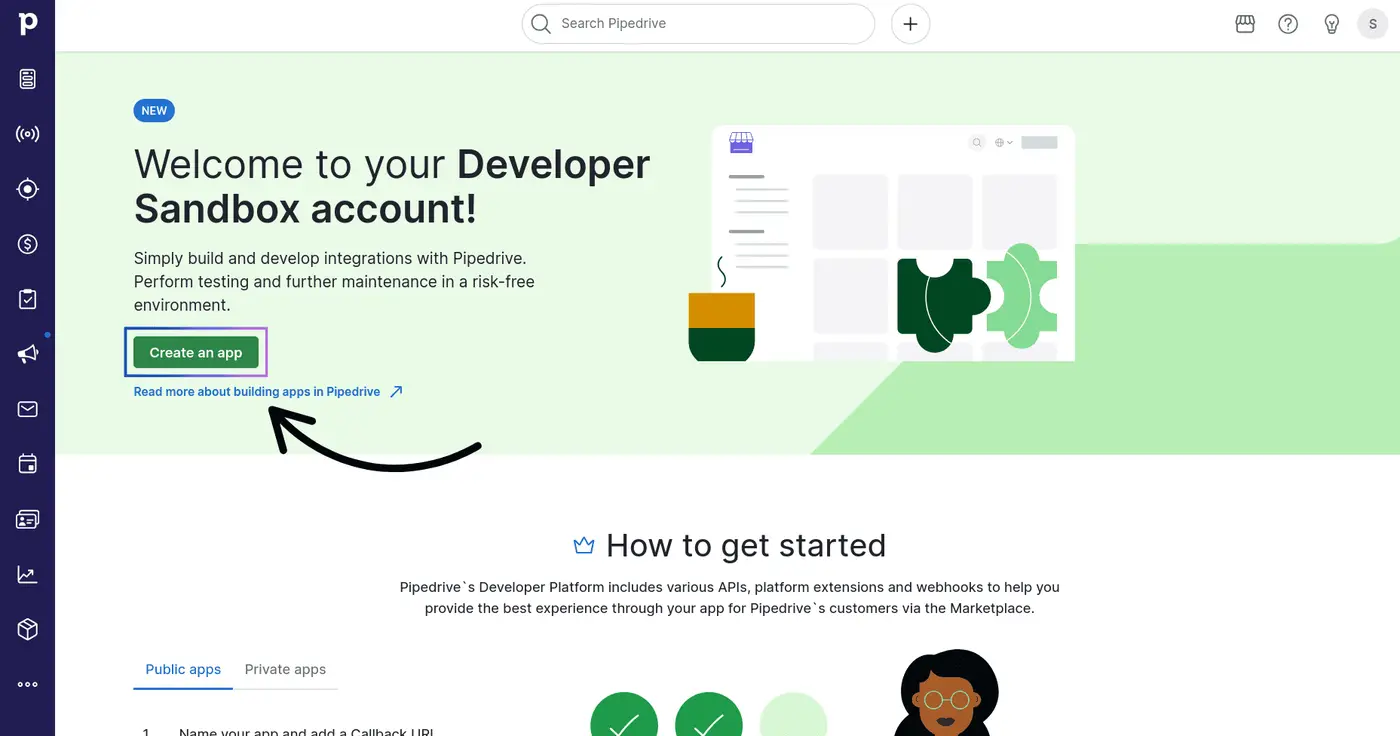
Sign in to the Pipedrive Developer Hub with your developer sandbox account and click Create an app.
-
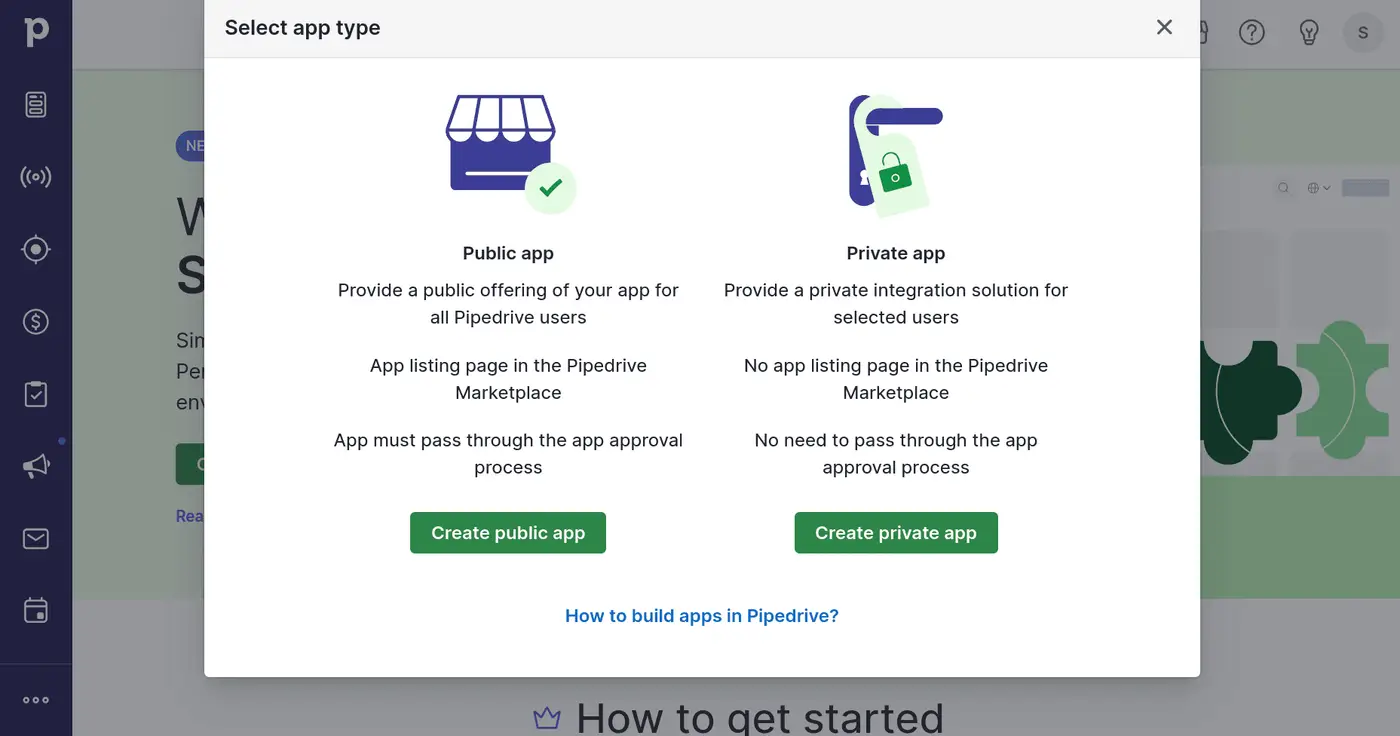
Choose the app type. A Private app works only for users you select and doesn't need Pipedrive's review. A Public app is open to any Pipedrive user, needs a name that's unique across Pipedrive, and must be approved by Pipedrive before others can use it.
-
On the Basic info tab, enter an App name and set Callback URL to
https://backend.composio.dev/api/v1/auth-apps/add. It must exactly match the auth config'soauth_redirect_urifield. Click Save. -
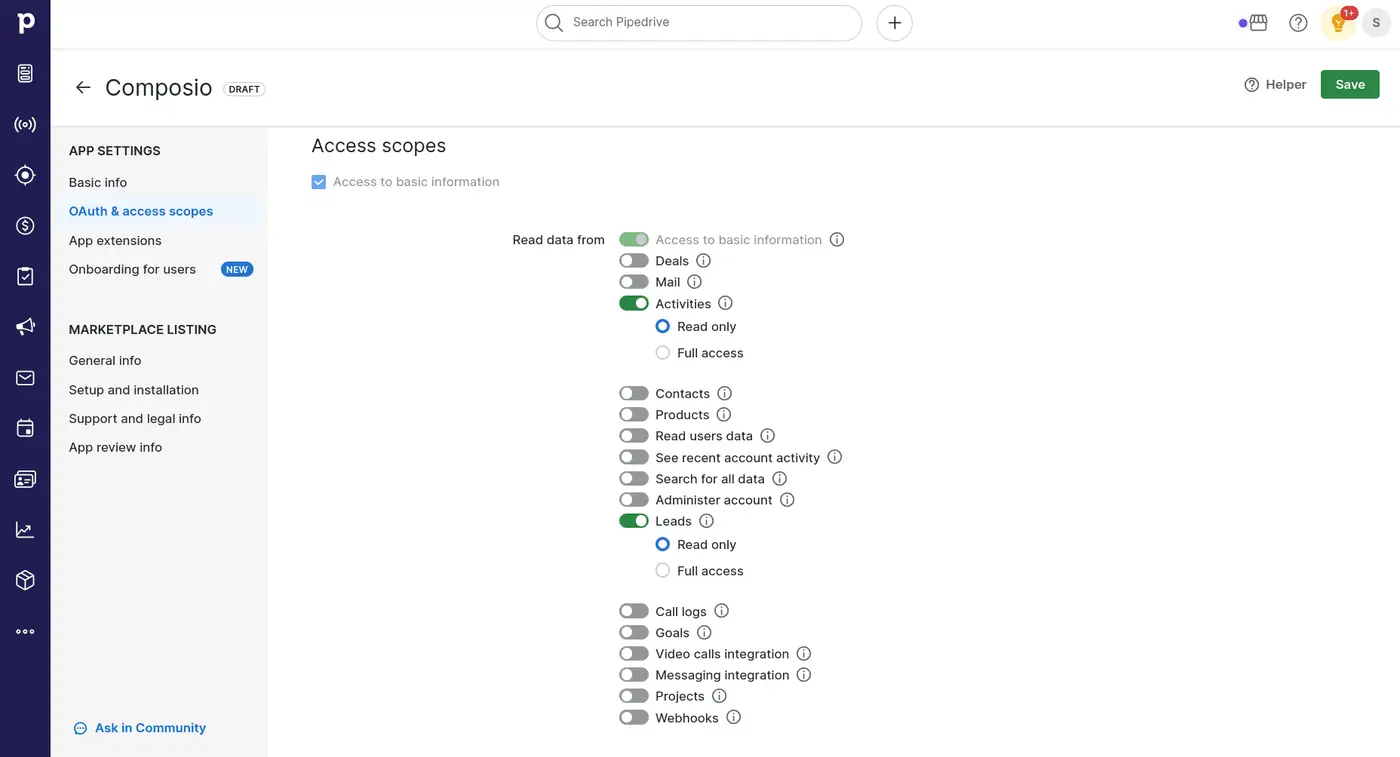
On the OAuth & access scopes tab, under Access scopes, choose Read only or Full access for each area your tools need, such as deals, contacts, activities, leads, products, or projects. By default, Pipedrive grants only basic access to the user's settings.
-
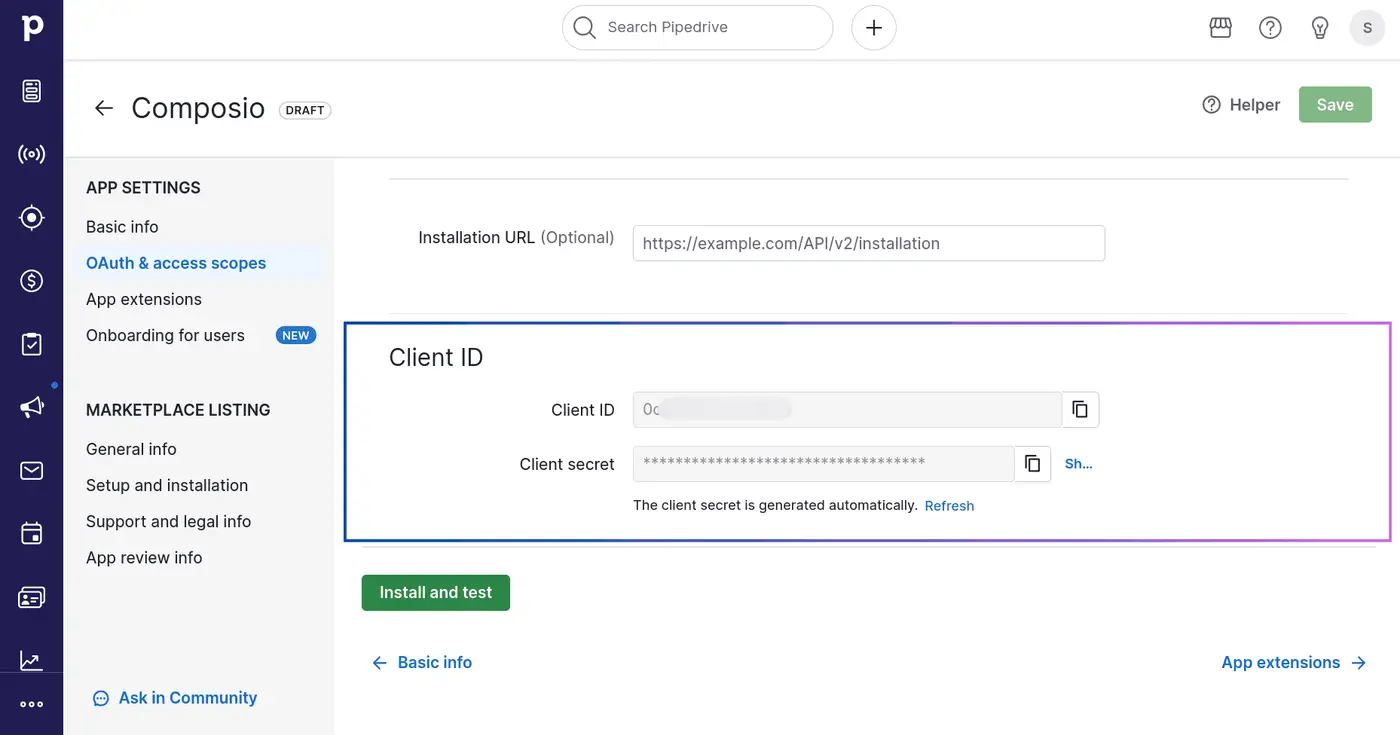
Scroll down to OAuth credentials and copy the Client ID and Client Secret.
-
For a public app, submit it from the App review info tab. Private apps skip review.
Create the auth config in Composio
- In the Composio dashboard, go to Auth Configs → Create and select Pipedrive.
- Choose OAuth2 and your own credentials, then paste the Client ID and Client Secret. Keep the redirect URI as the value you registered in Pipedrive.
- Click Create Auth Config, then click Connect Account and approve access in Pipedrive. Confirm the account shows Active on the auth config's Connected Accounts tab.
See custom auth configs for the general flow.
Start the connection from Composio. Don't use Install and Test in Pipedrive's app settings: that button runs Pipedrive's own install flow and sends the user to the callback URL without the Composio auth config context.
Why am I seeing "App not found" when connecting Pipedrive?
Pipedrive usually shows "App not found" when the OAuth app used for the connection is not approved or available for that user/workspace.
If you are using managed Pipedrive OAuth, this means the managed OAuth app is still under Pipedrive review/verification. If you are using your own Pipedrive OAuth app, check the app's approval/verification status in Pipedrive and make sure the user is authorizing the same app configured in the auth config. Also check that the client ID and secret come from that same app and that the callback URL matches the auth config's redirect URI. After the app is approved or corrected, start a fresh connection.