HubSpot
Latest versionHubSpot is an inbound marketing, sales, and customer service platform integrating CRM, email automation, and analytics to facilitate lead nurturing and seamless customer experiences
Authentication DetailsComposio-managed OAuth available
Frequently Asked Questions
Why do users see a "Connecting an unverified app" warning?
HubSpot shows this warning because the default Composio-managed HubSpot OAuth app is still awaiting HubSpot approval. The connection can still work, but HubSpot asks the user to explicitly accept the warning before continuing.
Composio is working on getting the default HubSpot OAuth app approved, but there is no concrete ETA because the final review timeline depends on HubSpot.
If this warning blocks your rollout, use your own HubSpot OAuth app credentials in a custom Composio auth config. That lets you control the app identity, review status, and consent screen shown to your users.
Should I use Composio-managed auth or my own HubSpot OAuth app?
Use Composio-managed auth when you want the fastest setup and the default Composio HubSpot app covers the permissions you need.
With Composio-managed HubSpot auth, you can only remove optional scopes that are already available on the Composio-managed HubSpot app.
You cannot add new scopes to the managed app, and you cannot remove scopes that are non-optional for that managed auth config. If you need a different scope set, create a custom HubSpot OAuth app and configure those scopes there.
Use your own HubSpot OAuth app when you need a different scope set, your own app name and branding on the consent screen, tighter control over app review and rollout, or a production setup owned by your team. Setup steps are in the next question.
How do I set up custom OAuth credentials for HubSpot?
Use your own HubSpot app when you need your own scope set, app name, or consent screen, or when the unverified-app warning blocks your rollout.
Create the HubSpot app
-
Create a developer account in the HubSpot developer portal. HubSpot public apps must belong to a developer account.
-
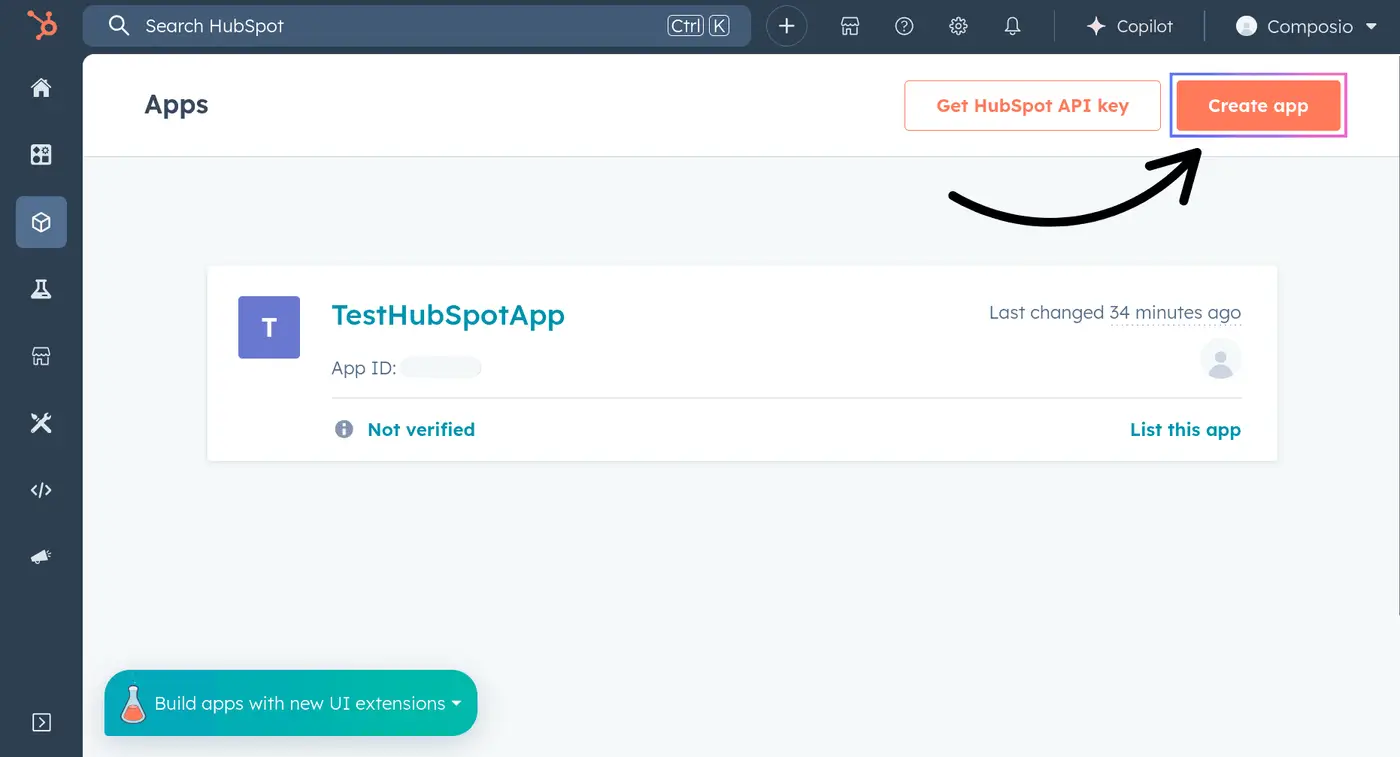
In the developer account, open Apps and click Create App.
-
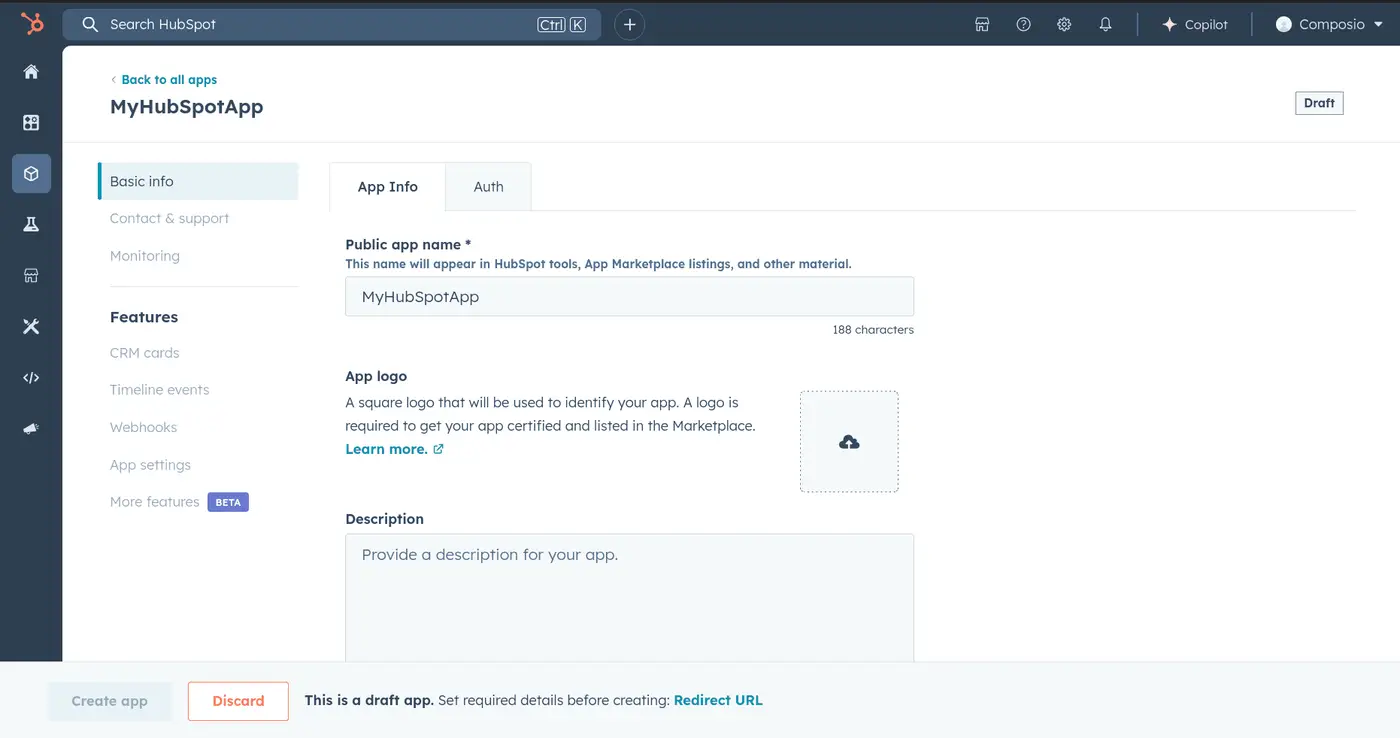
Enter the app name, description, logo, and support information. Users see these details when they authorize the app.
-
Open the Auth tab and copy the Client ID and Client Secret.
-
In Redirect URLs, below the credentials, add
https://backend.composio.dev/api/v1/auth-apps/add. It must exactly match theoauth_redirect_urifield in your Composio auth config. -
Enable the scopes your integration needs, marking each as required or optional to match how you'll list it in Composio (see the scope questions below).
Create the auth config in Composio
-
In the Composio dashboard, go to Auth Configs, click Create Auth Config, and select HubSpot.
-
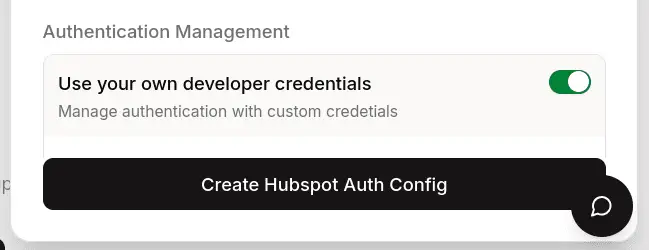
Set the authentication type to OAuth2 (not Bearer Token) and choose Use your own developer authentication.
-
Paste the Client ID and Client Secret. Set
scopesandoptional_scopesto match the required and optional scopes in your HubSpot app, then click Create HubSpot Auth Config.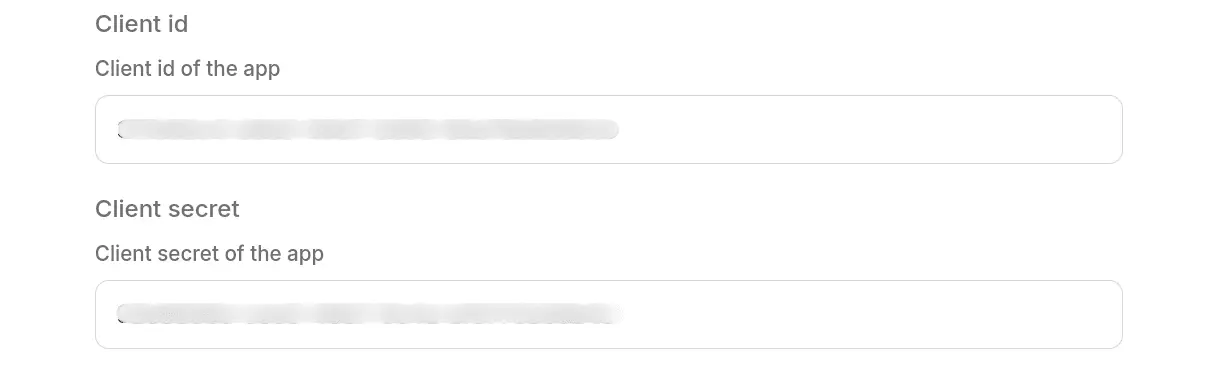
-
Click Connect Account, authorize the app in HubSpot, and confirm the account shows as Active.
See Custom auth configs for the general flow. The default auth config requests a broad CRM scope set in scopes and transactional-email automation marketing.campaigns.read marketing.campaigns.write in optional_scopes. Every requested scope must be enabled in your HubSpot app, or HubSpot rejects the authorization. See HubSpot's scopes reference for the full list.
How do scopes work in HubSpot?
The scope category must match between Composio and your HubSpot developer app.
- Scopes in Composio
scopesmust be configured in HubSpot as Required or Conditionally required. - Scopes in Composio
optional_scopesmust be configured in HubSpot as Optional. - Do not request a scope from Composio unless that same scope is enabled in the HubSpot developer app.
If you use the API, pass the fields in the auth config credentials:
{
  "credentials": {
    "scopes": "oauth crm.objects.contacts.read",
    "optional_scopes": "crm.objects.companies.read crm.objects.deals.read"
  }
}
Use the Create Auth Config API to create the auth config, the Get Auth Config API to inspect what Composio will request, and the Update Auth Config API to change the scope fields.
When reading an auth config through the API, check both credentials.scopes and credentials.optional_scopes. Together, they represent the HubSpot permissions Composio can request for that auth config.
HubSpot's docs may refer to the authorization URL parameter as optional_scope; in Composio, the editable auth config field is named optional_scopes.
What is the recommended custom HubSpot OAuth scope setup?
For custom auth, we usually recommend keeping the required list minimal:
oauth
Then put tool-specific HubSpot permissions in optional_scopes, and mark those same permissions as optional in your HubSpot developer app.
The main reason is flexibility. HubSpot requires the scopes in the OAuth URL to match how those scopes are categorized in the HubSpot developer app. If you add a new permission as required in HubSpot, every Composio auth config that uses that app must also request it through scopes; otherwise new installs can fail. Keeping tool-specific permissions optional makes it easier to add permissions over time without forcing every auth config to move in lockstep.
If a permission is mandatory for your product to work, keep it required. Just make sure it is required in HubSpot and sent through Composio scopes.
Example A: all selected permissions are required in HubSpot:
{
  "credentials": {
    "scopes": "oauth crm.objects.contacts.read crm.objects.companies.read crm.objects.deals.read",
    "optional_scopes": ""
  }
}
Example B: only oauth is required in HubSpot and the selected tool permissions are optional:
{
  "credentials": {
    "scopes": "oauth",
    "optional_scopes": "crm.objects.contacts.read crm.objects.contacts.write crm.objects.companies.read crm.objects.companies.write crm.objects.deals.read crm.objects.deals.write tickets timeline"
  }
}
Both are valid. What matters is that Composio and HubSpot agree on which scopes are required and which scopes are optional.
After changing scopes, reconnect affected HubSpot accounts. Existing connected accounts keep the scopes granted during the original authorization. Optional scopes can let a connection succeed even when a portal cannot grant every permission, but a tool can still fail later if that tool needs a permission the user did not grant.
What are common HubSpot troubleshooting checks?
- Scope mismatch or callback errors: confirm every requested scope is enabled in HubSpot and is in the same category in both HubSpot and Composio.
- Missing-scope tool errors: add the missing scope to the auth config and HubSpot developer app, then reconnect the account.
- Contact list/search limit errors:
HUBSPOT_SEARCH_CONTACTS_BY_CRITERIAandHUBSPOT_LIST_CONTACTS_PAGEsupport a maximumlimitof 100 results per request. - Webhook setup errors: HubSpot webhooks require a public app with an App ID and Developer API Key. Private or internal apps cannot receive webhooks.
- Refresh or expiry errors: Common causes include the user revoking the app in HubSpot, HubSpot app credentials changing, the refresh token being invalidated, or the connected account being reauthorized with a different app configuration. After rotating custom OAuth credentials or changing the HubSpot developer app, reconnect affected HubSpot accounts.
HubSpot auth loops can be caused by HubSpot-side workspace/login state
If the HubSpot flow loops while Composio works on its side, retry while logged into the correct HubSpot workspace and confirm the OAuth app is public/configured correctly.
HubSpot triggers require each user’s own app ID and developer API key
HubSpot webhook APIs need the specific HubSpot app that should receive webhook notifications. For user HubSpot triggers, app_id and developer API key are required because each user needs their own HubSpot app for webhook delivery.