Asana
Latest versionTool to help teams organize, track, and manage their work.
Authentication DetailsComposio-managed OAuth available
Frequently Asked Questions
How do I set up custom OAuth credentials for Asana?
Use your own Asana app when you want users to see your app's name on the consent screen and control the credentials yourself.
Create the Asana app
-
Sign in to Asana and open the Asana developer console.
-
Click + New App and enter an app name, such as
Composio Integration. The app website is optional.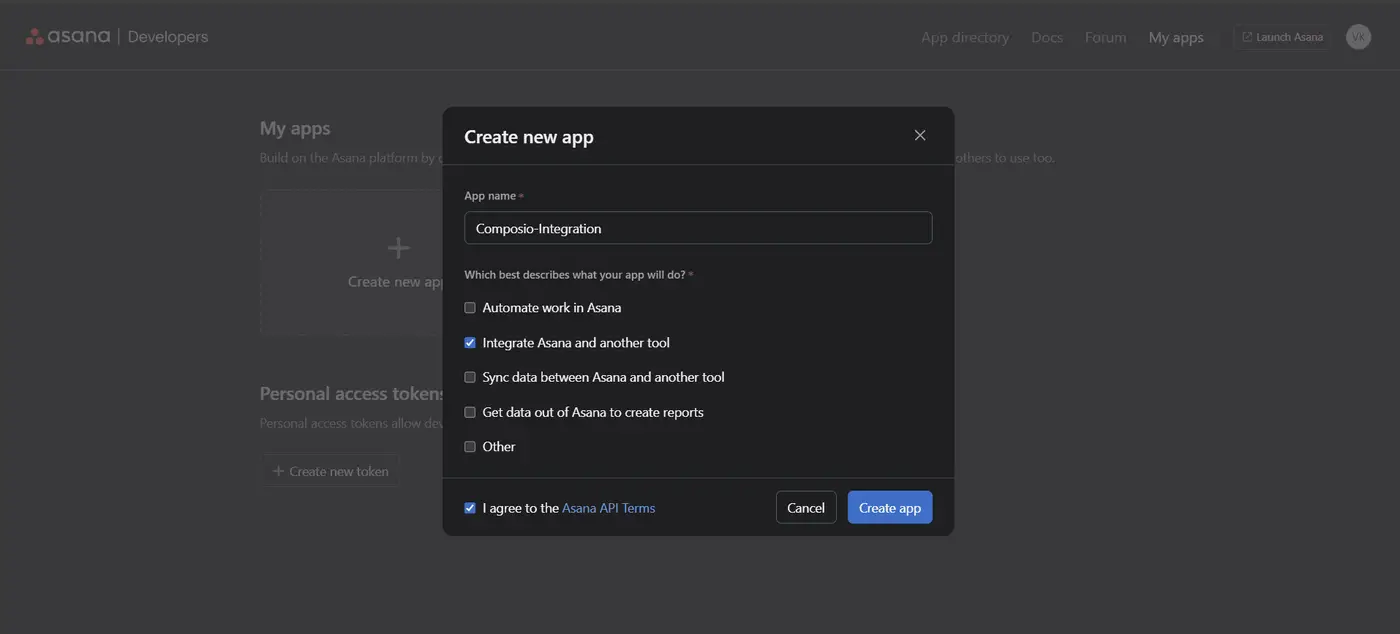
-
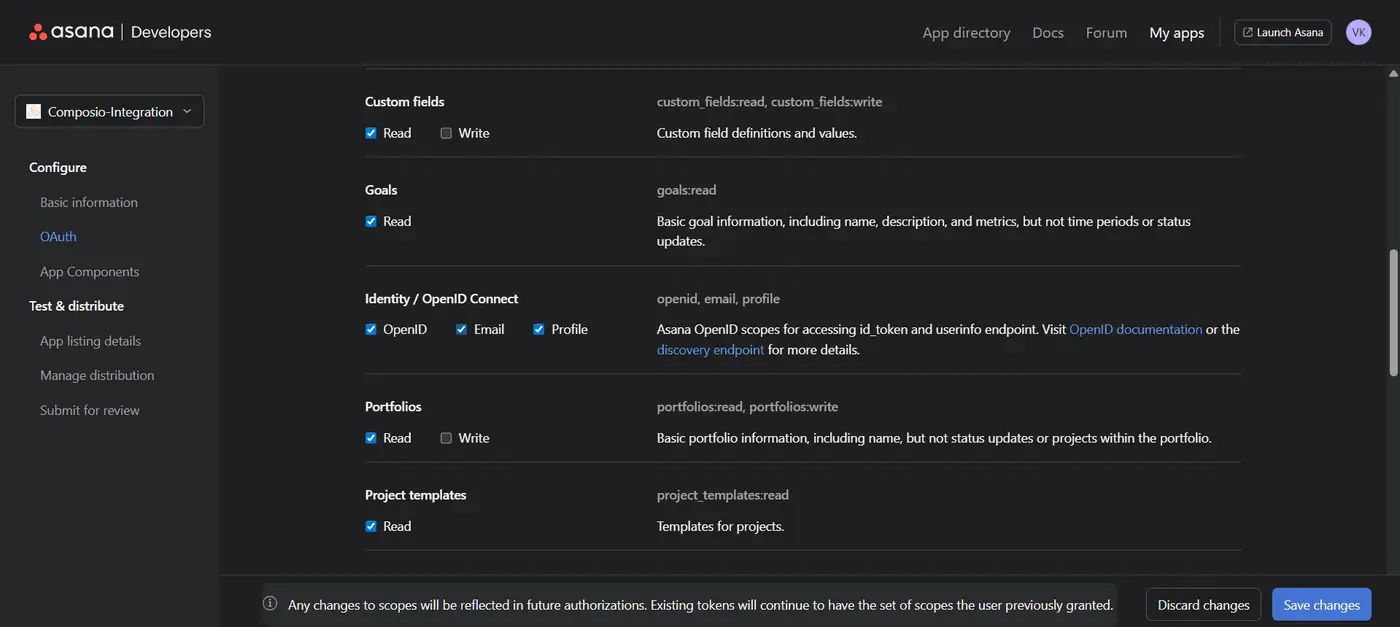
In the app's OAuth settings, add the redirect URL
https://backend.composio.dev/api/v1/auth-apps/add. It must exactly match theoauth_redirect_urifield in your Composio auth config. -
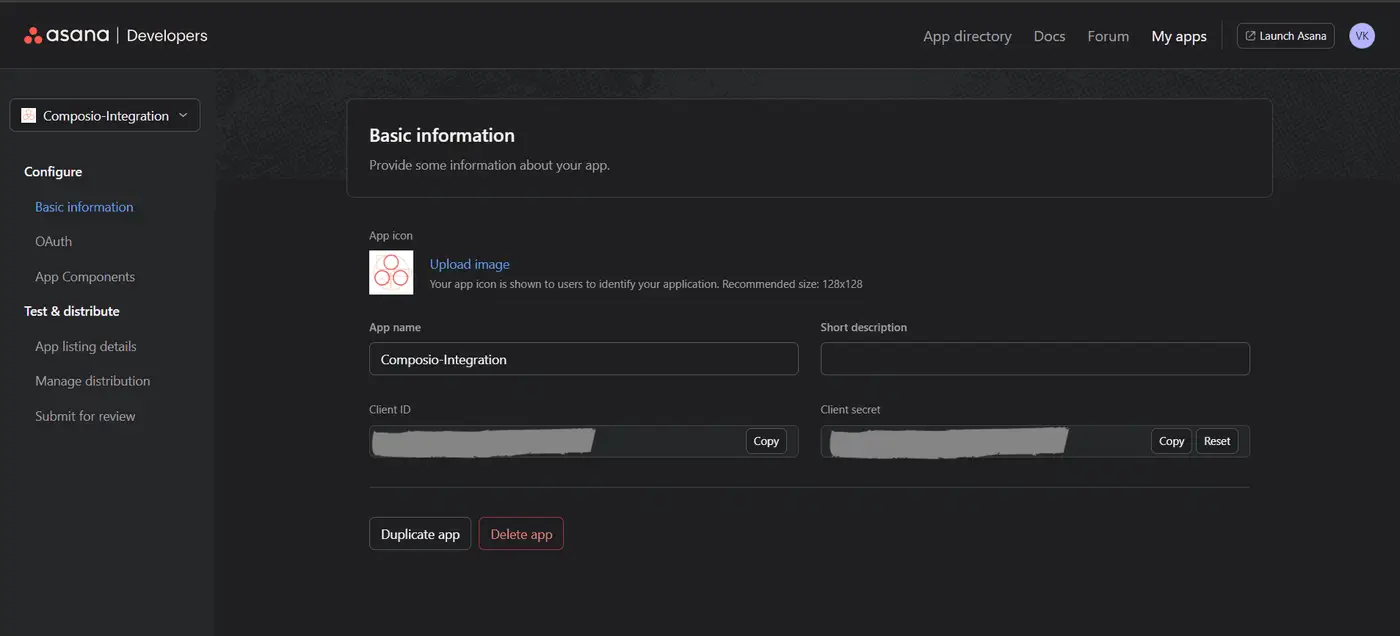
Save the app and copy the Client ID and Client Secret.
Create the auth config in Composio
-
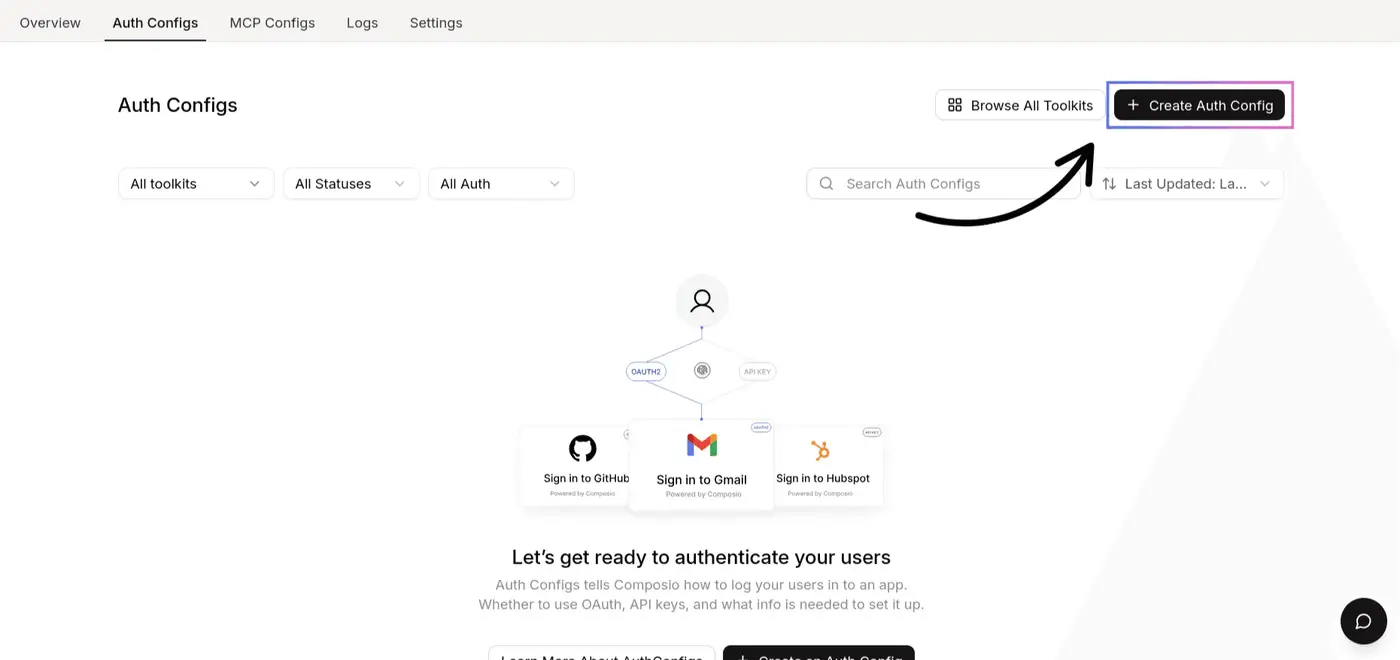
In the Composio dashboard, go to Auth Configs, click Create Auth Config, and select Asana.
-
Set the authentication type to OAuth2 and choose Use your own developer authentication.
-
Paste the Client ID and Client Secret, add any scopes you need, then click Create Asana Auth Config.
-
Click Connect Account, sign in to Asana, and approve access to your workspace. Confirm the account shows as Active.
See Custom auth configs for the general flow.
Scopes
The default auth config doesn't request specific scopes. To request granular scopes such as tasks:read, projects:read, or workspaces:read, enable them in the Asana app's OAuth settings and add the same values to the auth config's Scopes field. Request only what your integration uses.