GitHub
Latest versionGitHub is a code hosting platform for version control and collaboration, offering Git-based repository management, issue tracking, and continuous integration features
Authentication DetailsComposio-managed OAuth available
Frequently Asked Questions
How do I set up custom OAuth credentials for GitHub?
Use your own GitHub OAuth App when you want users to see your app's name on the consent screen and control scopes and credential rotation yourself. These steps cover OAuth Apps; for GitHub Apps, see the next question.
Create the GitHub OAuth App
-
Sign in to GitHub with the account that should own the app. To keep the app with a team, register it under an organization you can manage apps for.
-
Click your avatar, then Settings. In the sidebar, click Developer settings > OAuth Apps > New OAuth App (or Register a new application if it's the first one).

-
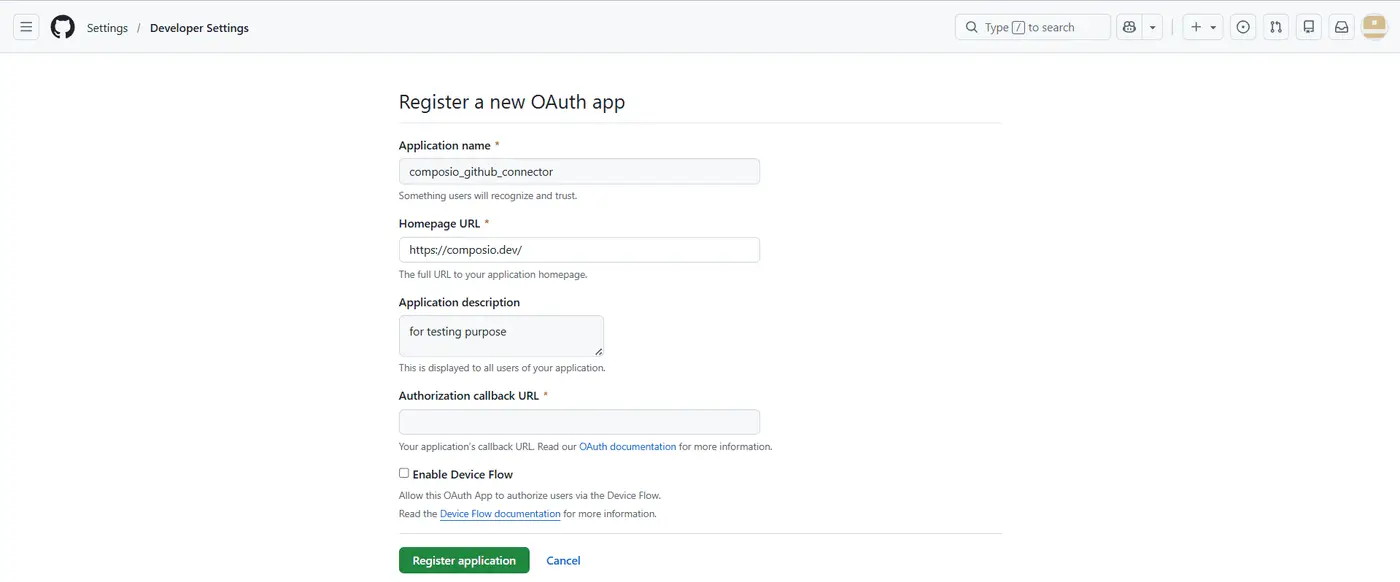
Fill in the form:
- Application name: a name users will recognize on the consent screen.
- Homepage URL: the public site for your product.
- Application description: optional, but helps users understand the request.
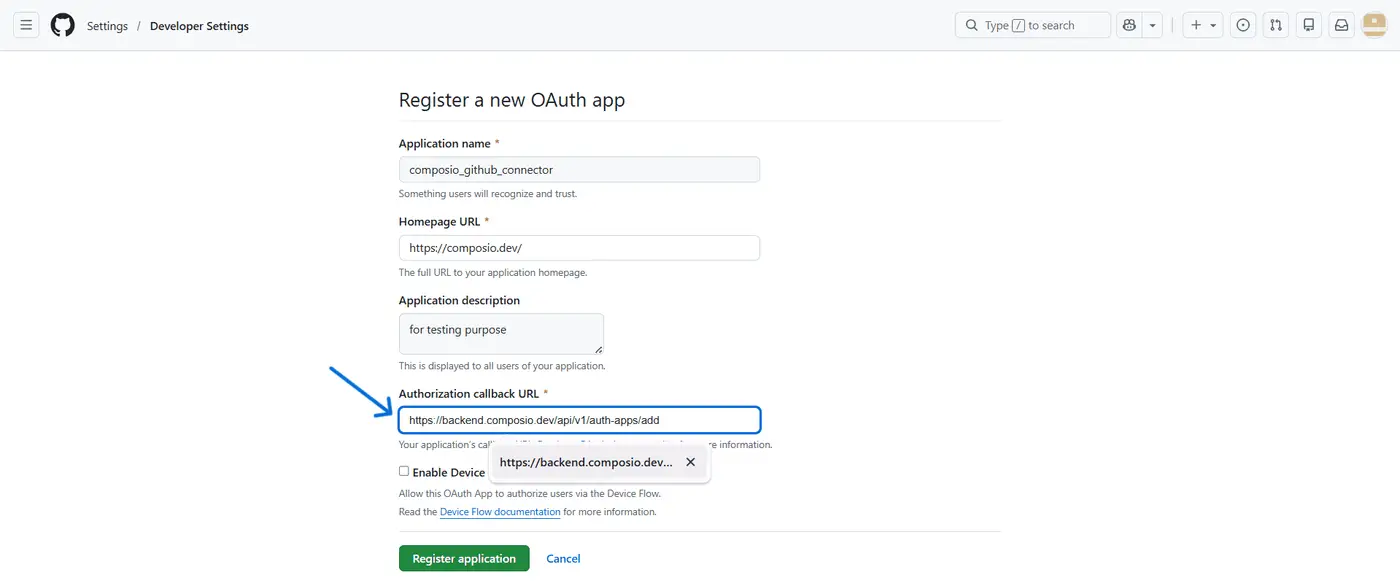
- Authorization callback URL:
https://backend.composio.dev/api/v1/auth-apps/add. It must exactly match theoauth_redirect_urifield in your Composio auth config.
These fields are public, so don't put secrets or internal URLs in them. Leave Enable Device Flow off; the browser flow doesn't need it.
-
Click Register application, copy the Client ID, then click Generate a new client secret and copy it right away. GitHub shows it only once.
Create the auth config in Composio
-
In the Composio dashboard, go to Auth Configs, click Create Auth Config, and select GitHub.
-
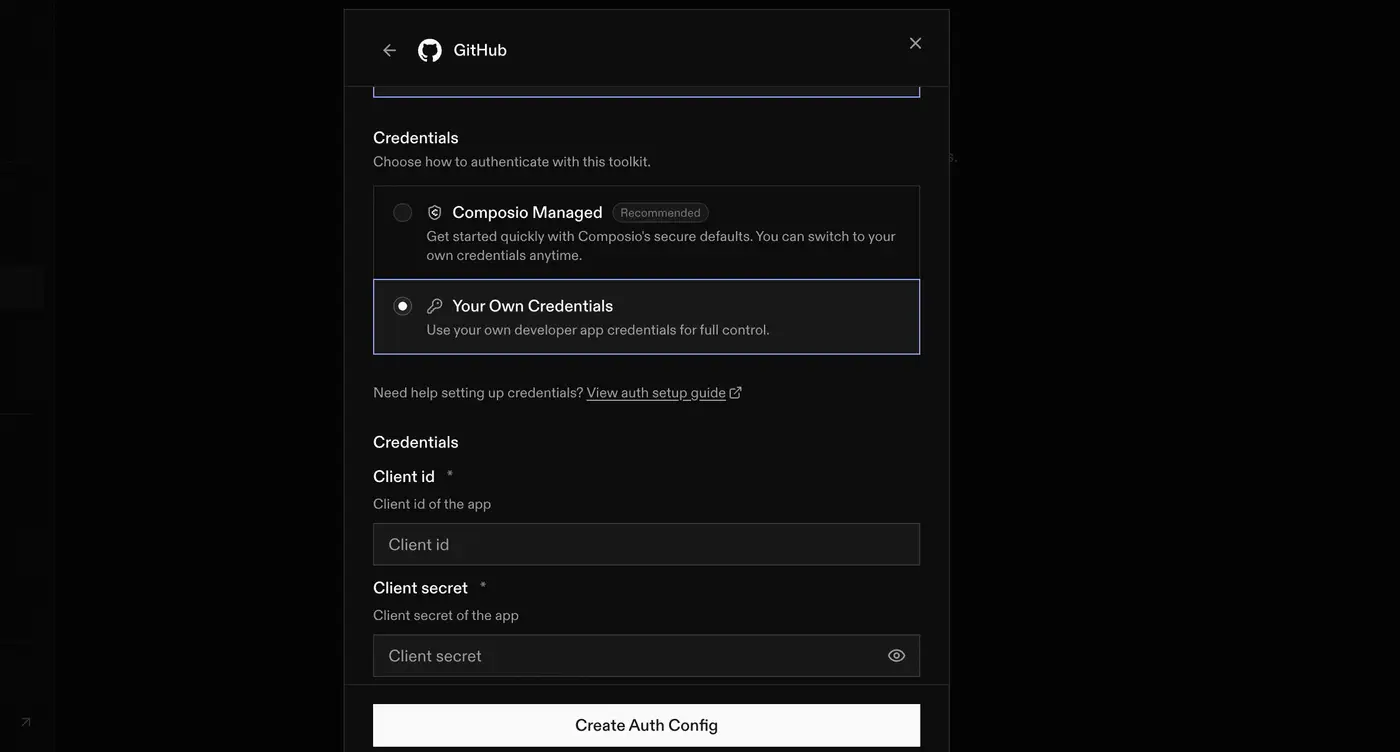
Confirm the authentication method is OAuth2, review the scopes, and turn on Use your own developer credentials.
-
Paste the Client ID and Client Secret, then create the auth config.
-
Click Connect Account, enter a user ID, and click Authorize on the GitHub consent screen. Confirm the account shows as Active.
See Custom auth configs for the general flow.
Scopes
The default auth config requests repo, user, gist, notifications, project, workflow, and codespace. Remove any your tools don't need. If you support several permission levels, create a separate auth config for each.
Organization access
If the consent screen shows an organization with a Request button, the user can still authorize for their personal account, but an organization owner may need to approve the app before it can reach the organization's private resources.
Does Composio support GitHub Apps?
Yes. You can bring your own GitHub App by configuring its client ID and client secret in the GitHub auth config.
The GitHub App installation step is separate from the OAuth credential setup. The user still needs to install the GitHub App on the relevant account or organization and grant repository access before GitHub App based tool calls can work. GitHub App permissions come from the app's GitHub settings and installation grant, not from auth config scopes.
Composio does not currently provide the GitHub App installation link automatically during this flow. Provide your GitHub App installation link to the user, have them install the app, then complete the connection. Built-in installation-link handling is being worked on.