Google Ads
Latest versionGoogle Ads, is an online advertising platform developed by Google, where advertisers bid to display brief advertisements, service offerings, product listings, and videos to web users.
Authentication DetailsComposio-managed OAuth available
Frequently Asked Questions
How do I set up custom Google OAuth credentials for Google Ads?
Use your own Google OAuth app when you want your app name on the consent screen, your own API quota, or full control over the requested scopes.
You need a Google Ads account you can access and its 10-digit Customer ID. Live-account API access is controlled by the Google Cloud project that owns the OAuth client, not by a developer token on the auth config.
Create the Google OAuth app
-
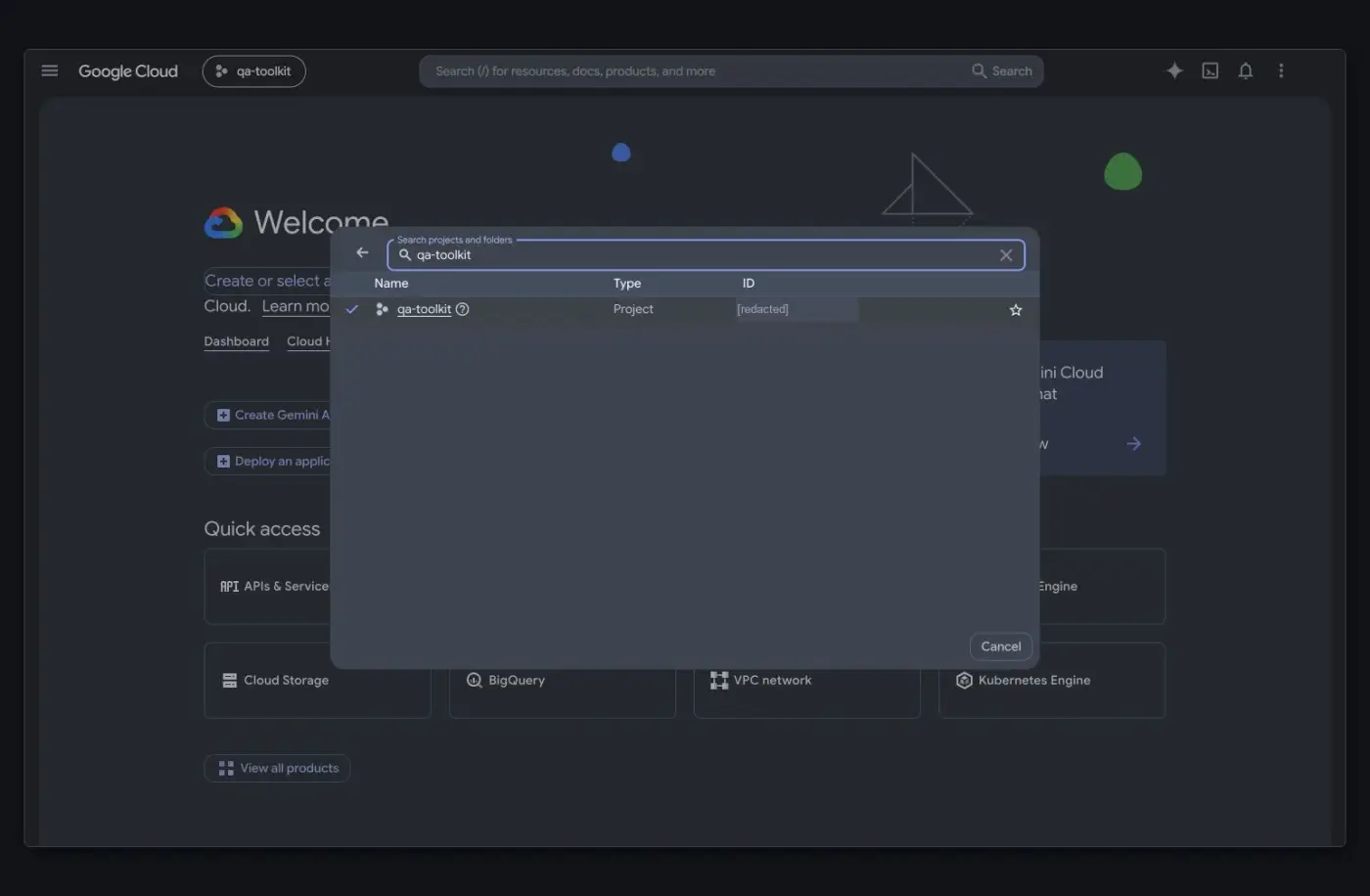
In Google Cloud Console, select the project that will own the OAuth client, or create one.
-
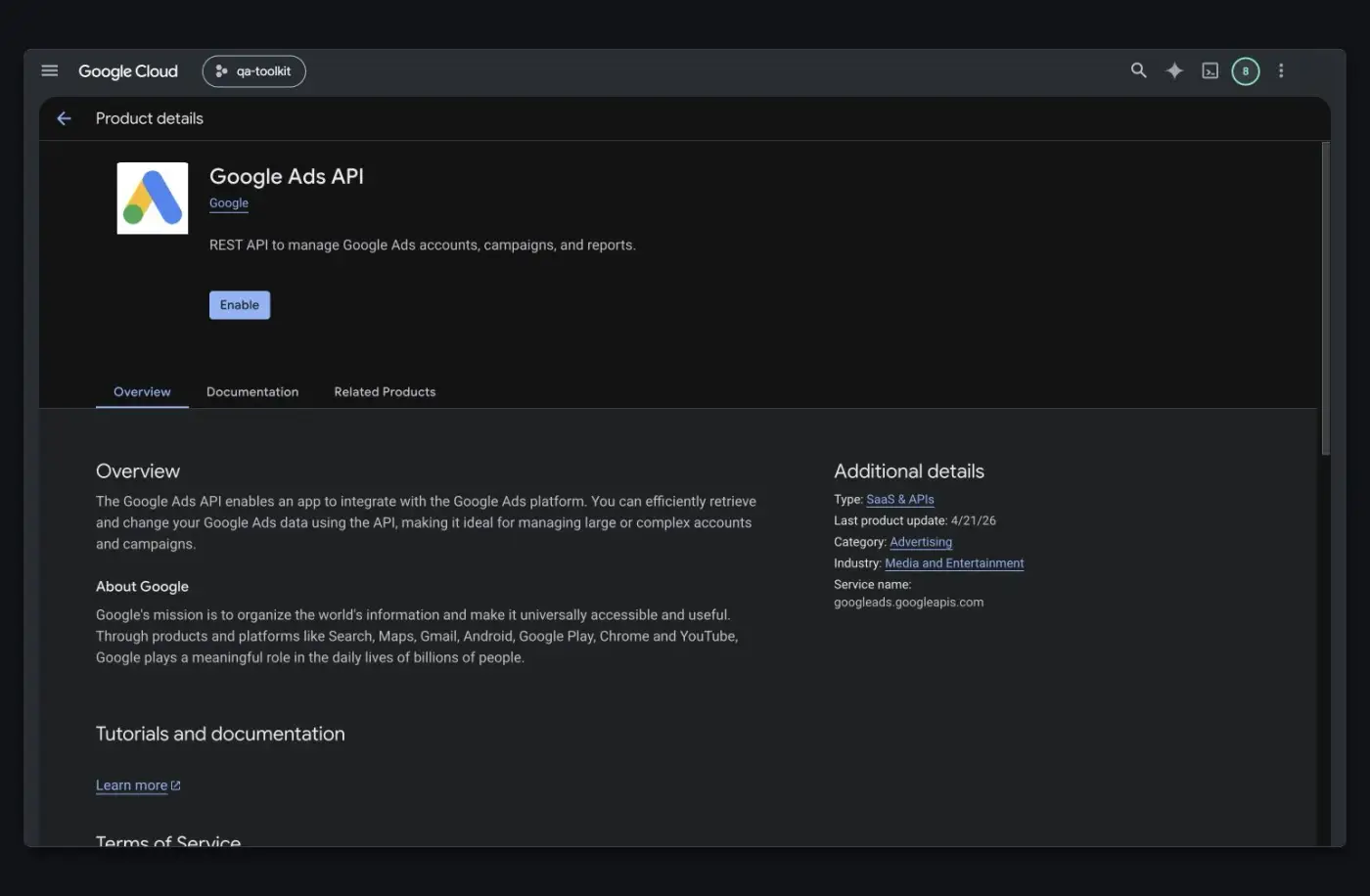
Open APIs & Services → Library, search for Google Ads API, and select Enable. If the page shows Manage, the API is already enabled.
-
Enabling the Google Ads API grants Test access only. To use production Ads accounts, open the Google Ads API Overview page for your Cloud project and apply for Explorer access. Higher usage or extra features can require Basic or Standard access. See Google's access levels and Cloud project setup.
-
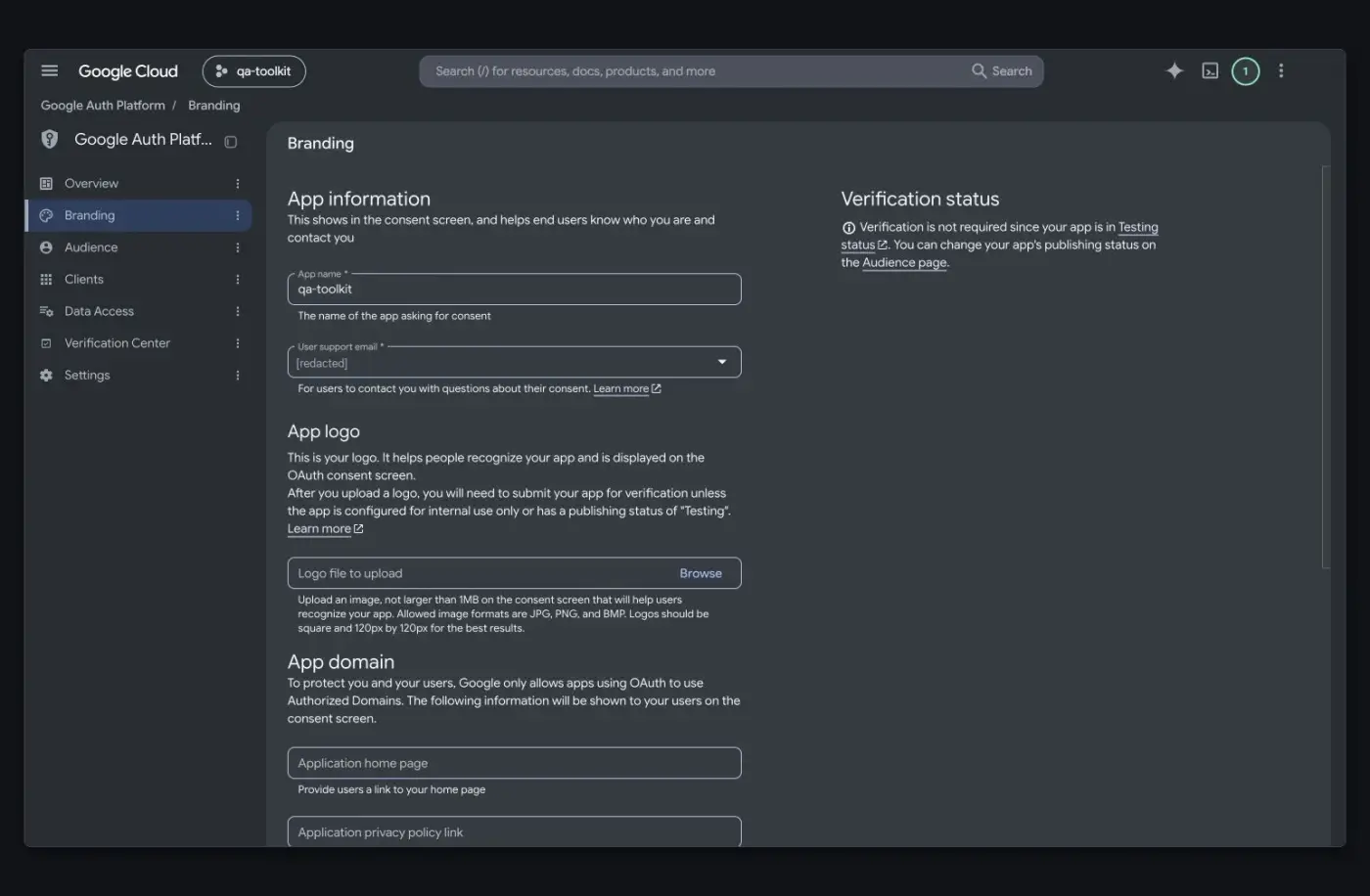
Open Google Auth Platform → Branding. If Google shows Get started, enter the app name, user support email, and developer contact email, then save.
-
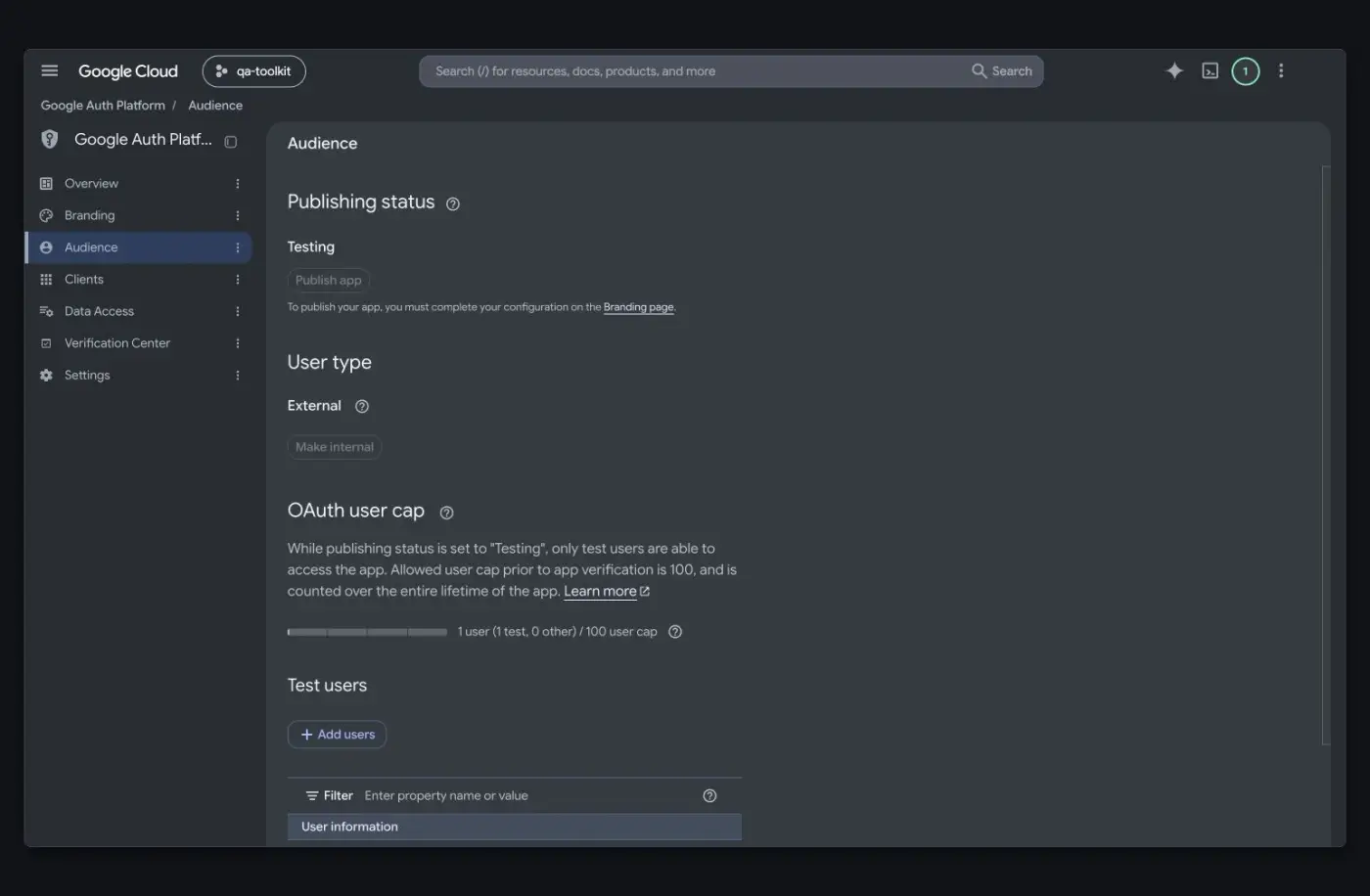
Open Audience. Choose Internal to limit the app to users in your Google Workspace organization, or External for consumer accounts and users outside it. While an external app's publishing status is Testing, only accounts listed under Test users can connect, so add every account you'll test with.
-
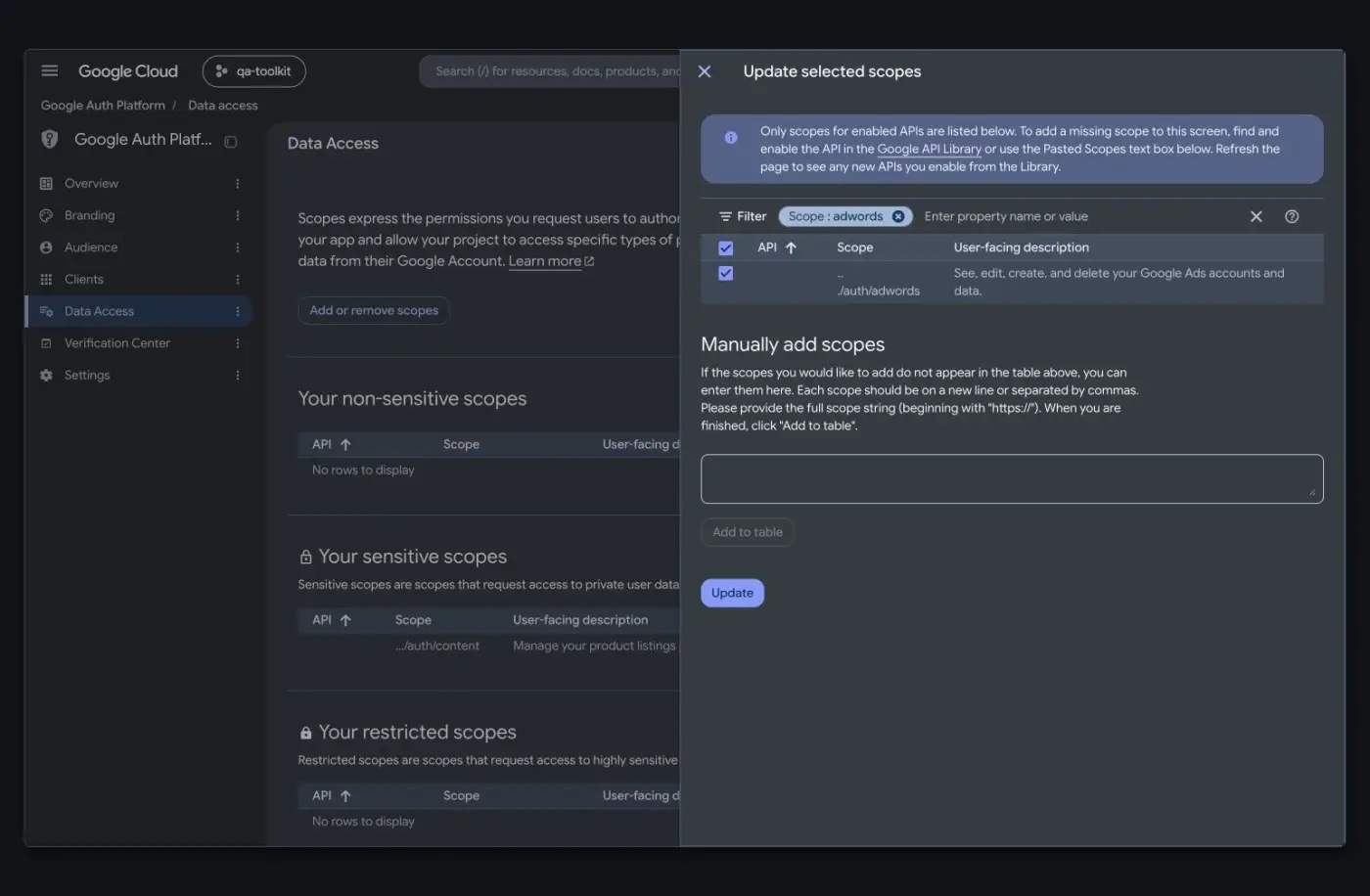
Open Data Access → Add or remove scopes and add the scopes listed under Scopes below. If a scope isn't in the list, paste its full URL under Manually add scopes and select Add to table. Select Update, then Save.
-
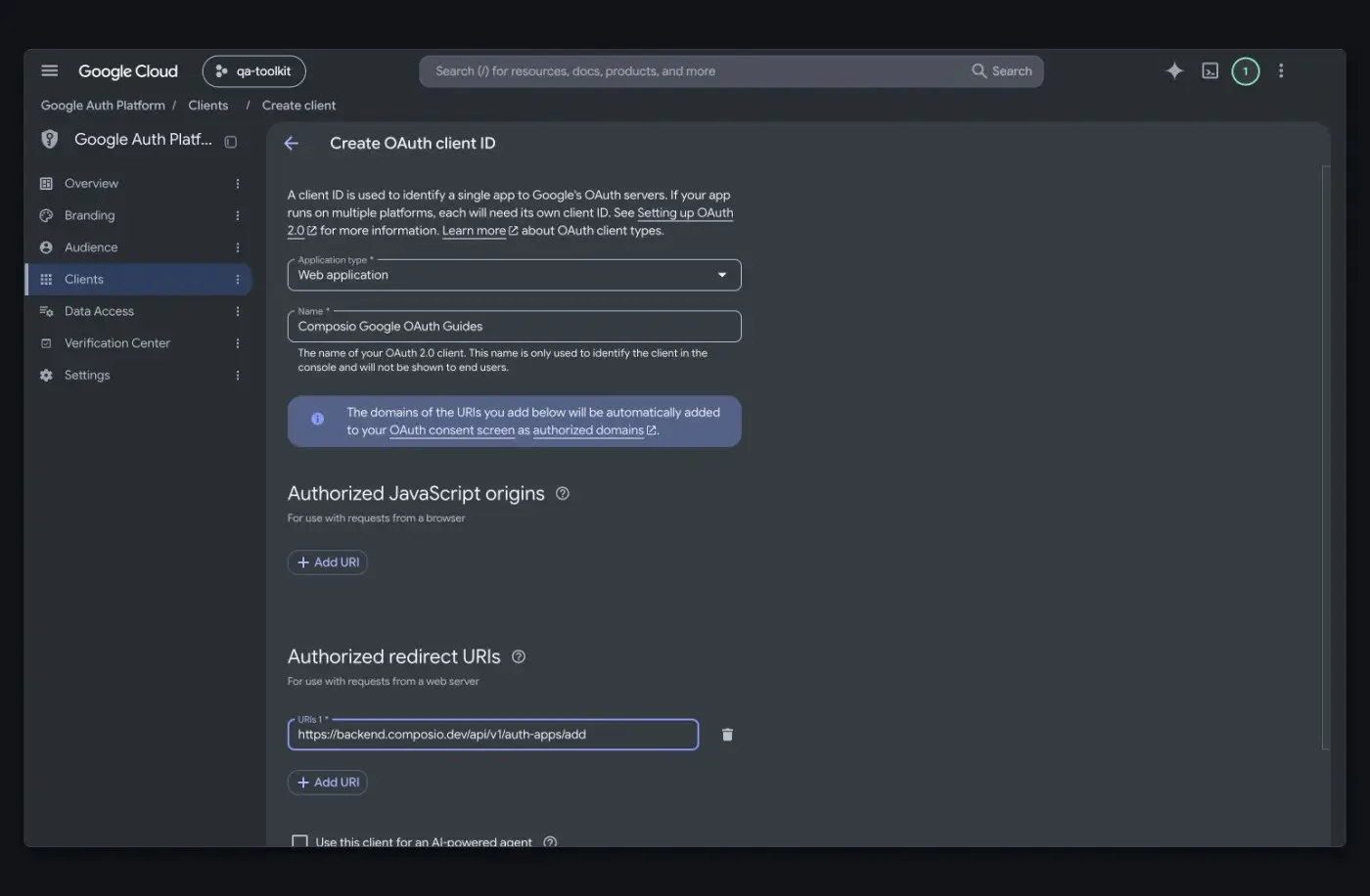
Open Clients → Create client, choose Web application, and give it a name.
-
Under Authorized redirect URIs, add
https://backend.composio.dev/api/v1/auth-apps/add. It must exactly match theoauth_redirect_urifield on your Composio auth config.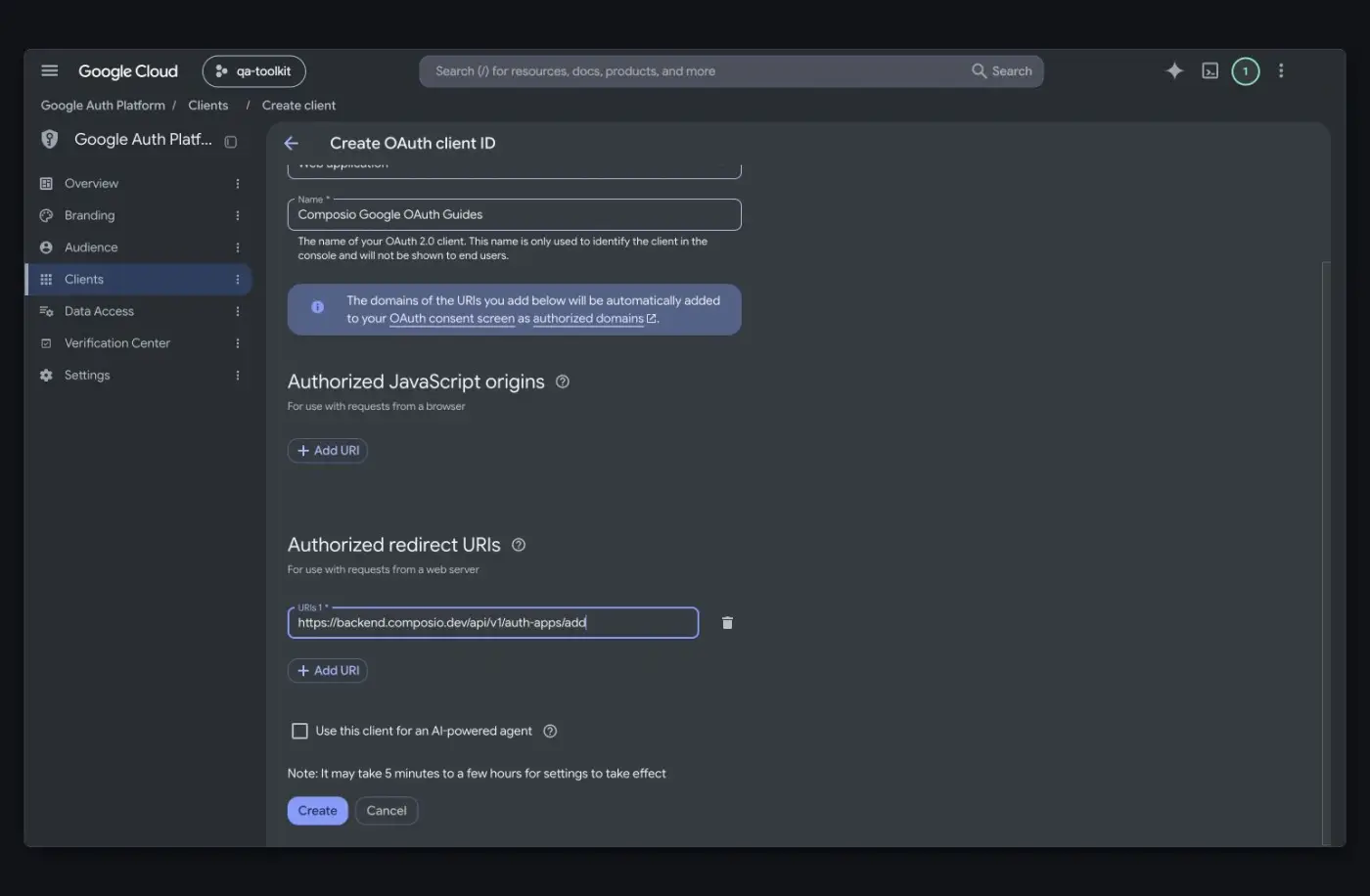
-
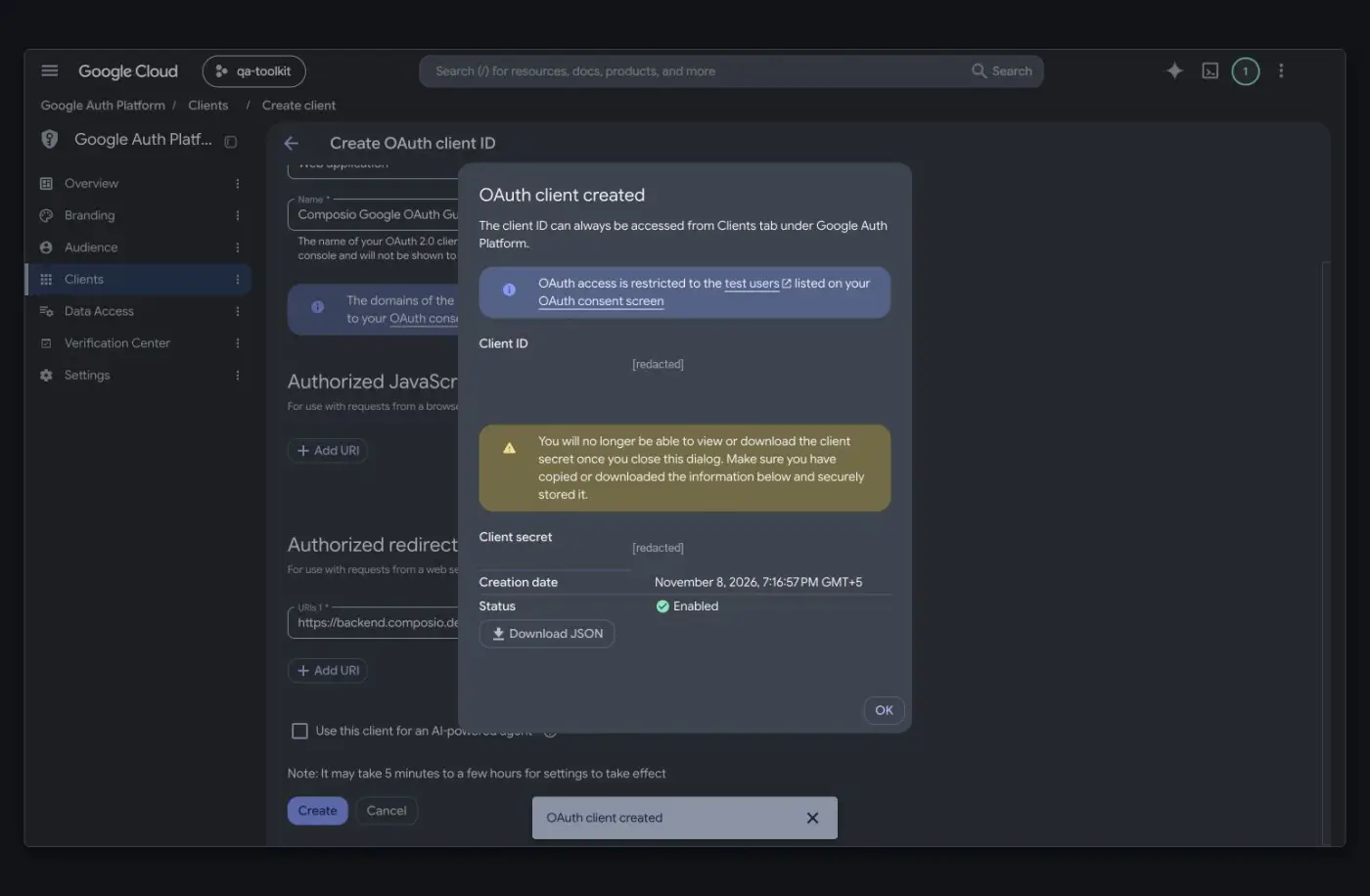
Select Create. Copy the Client ID and Client secret. Google shows the full secret only once, so save it before you close the dialog.
Create the auth config in Composio
-
In the Composio dashboard, open Auth Configs → Create and select Google Ads.
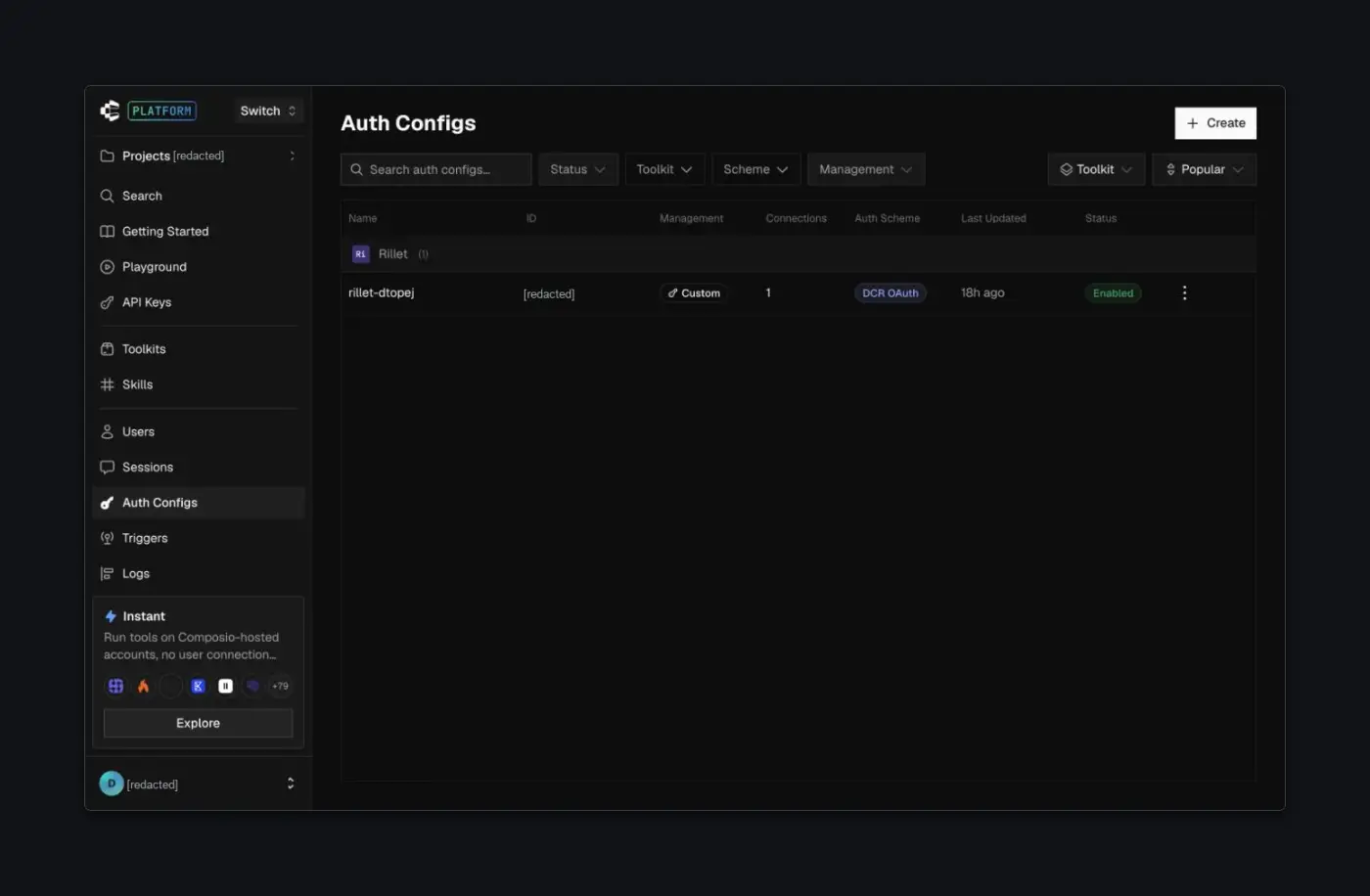
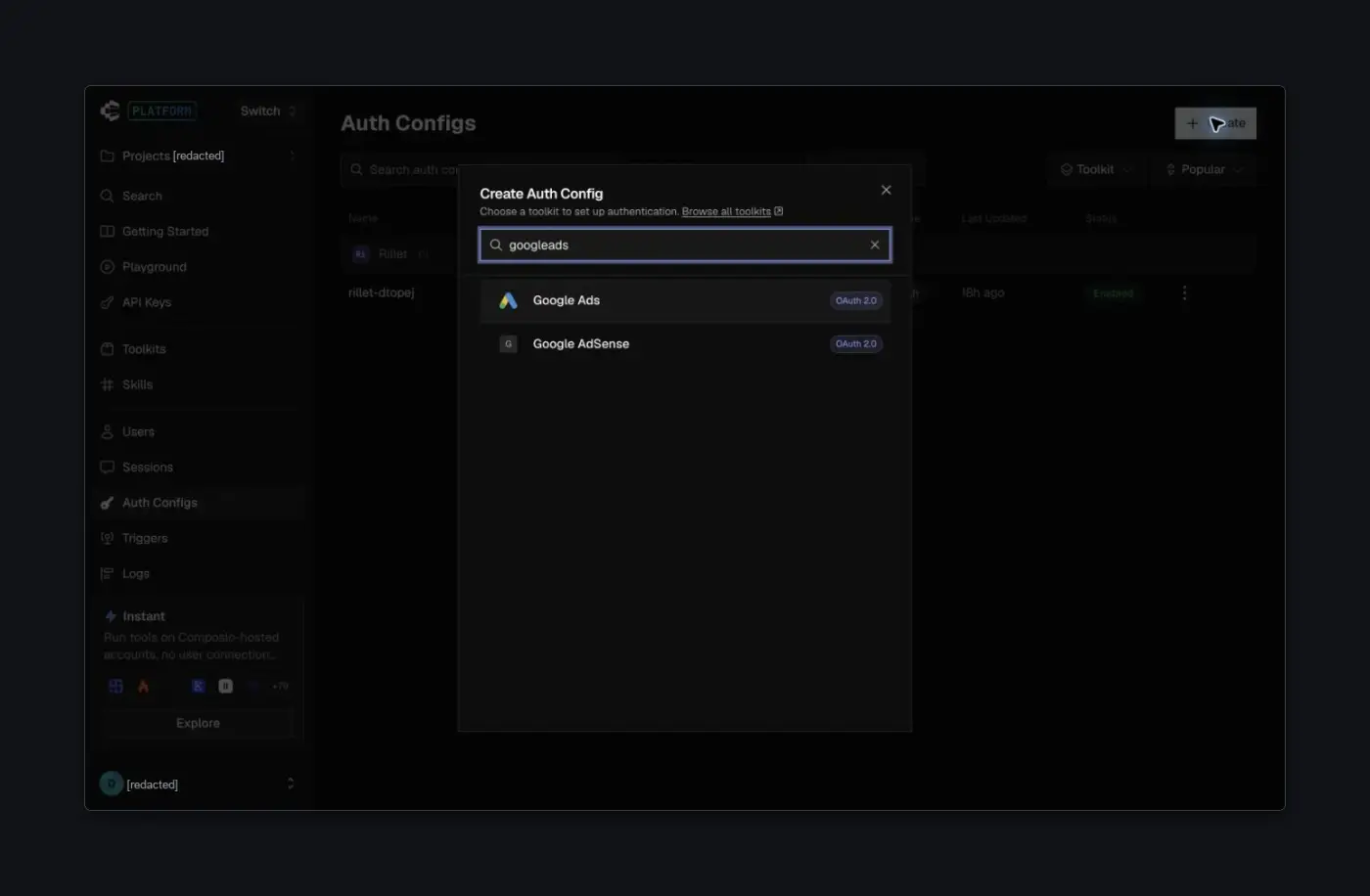
-
Choose OAuth 2.0 and Your Own Credentials, then paste your Client ID and Client secret. Leave Redirect URI unchanged, keep the scopes in line with what you added in Google, and select Create Auth Config.
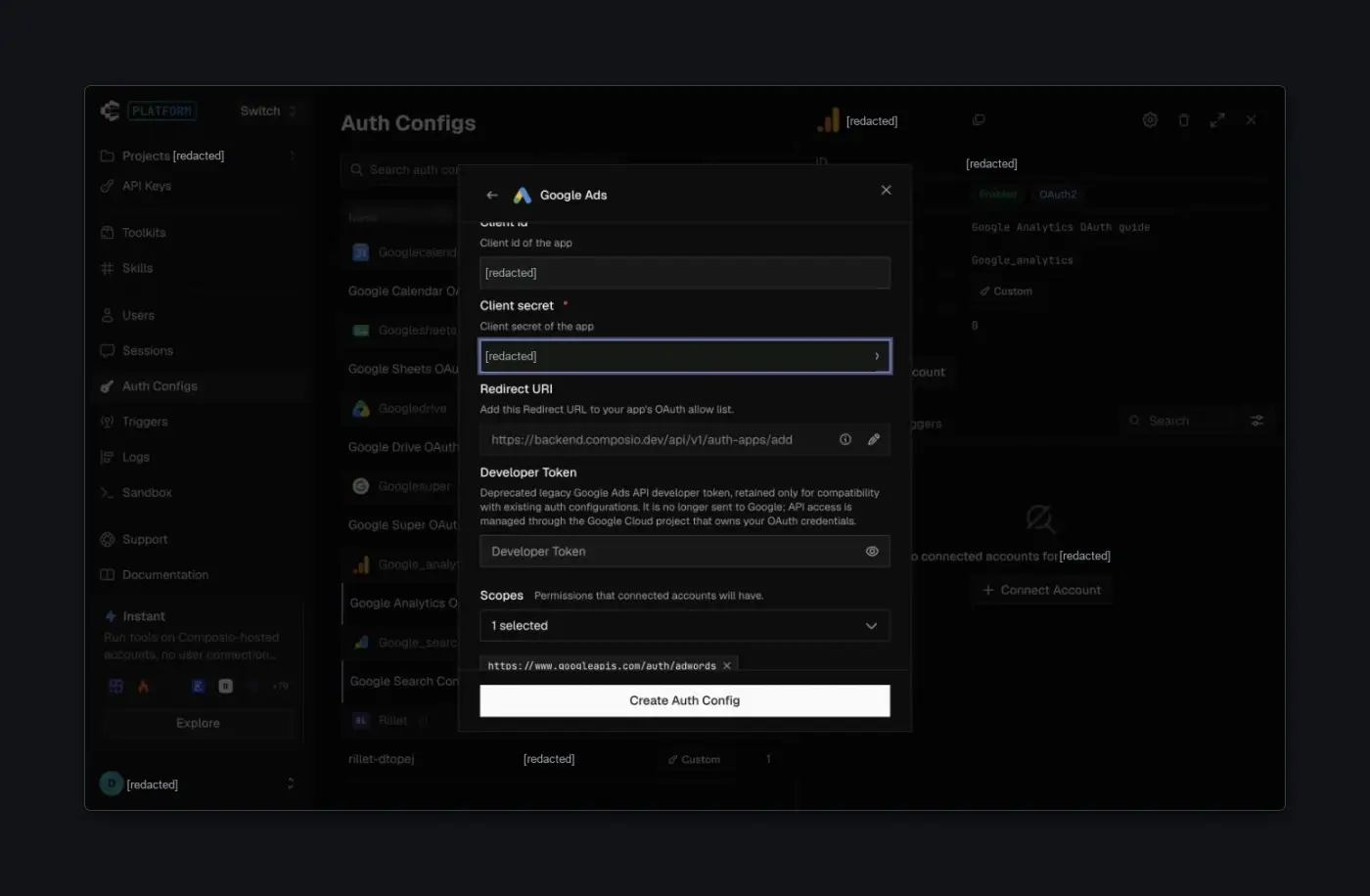
-
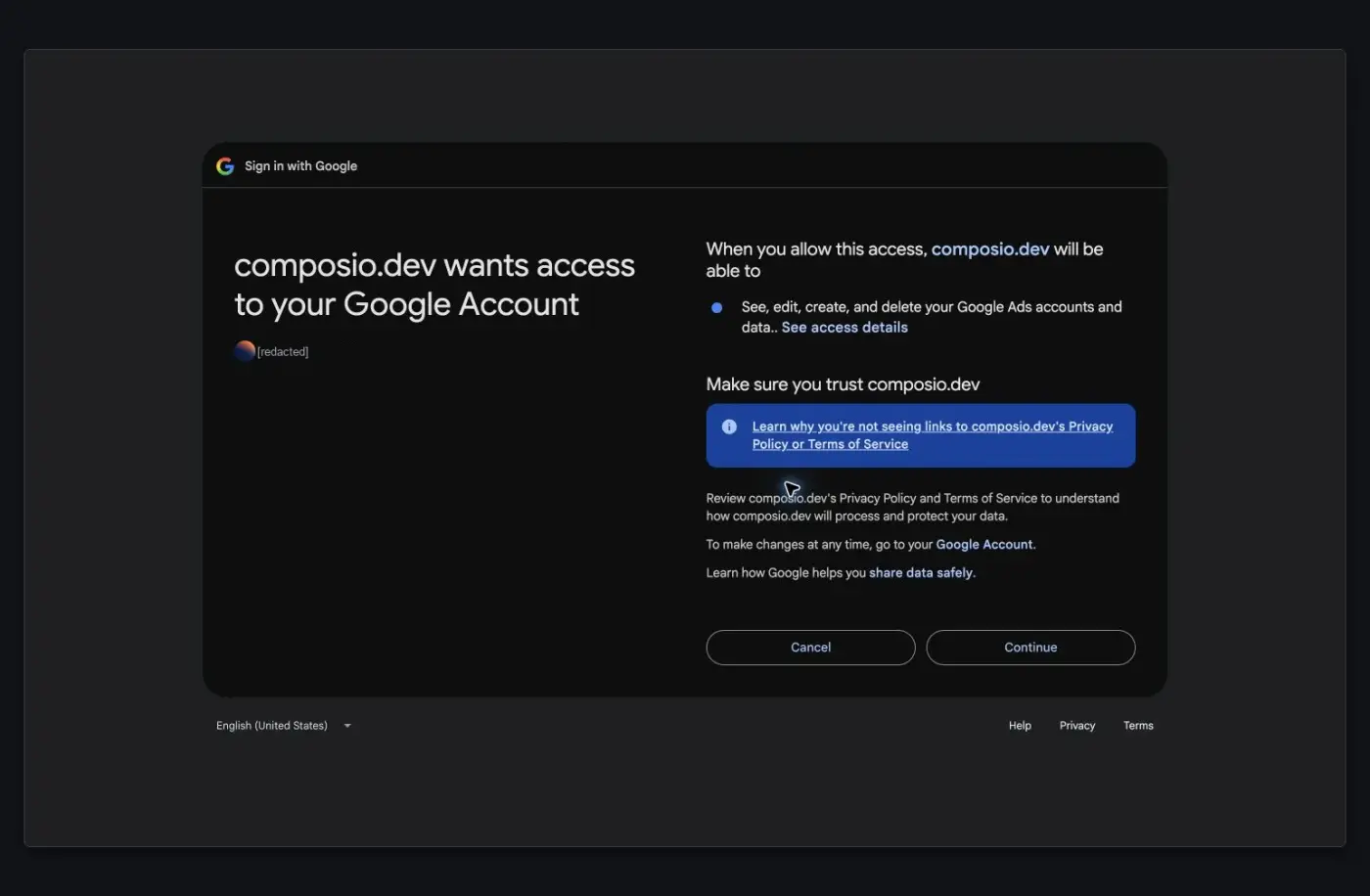
Open the auth config, select Connect Account, and enter the Customer ID of the Google Ads account or manager (MCC) account you want to use, for example
123-456-7890. This is not your Google Cloud project ID. Then sign in with a Google account that can access that Ads account.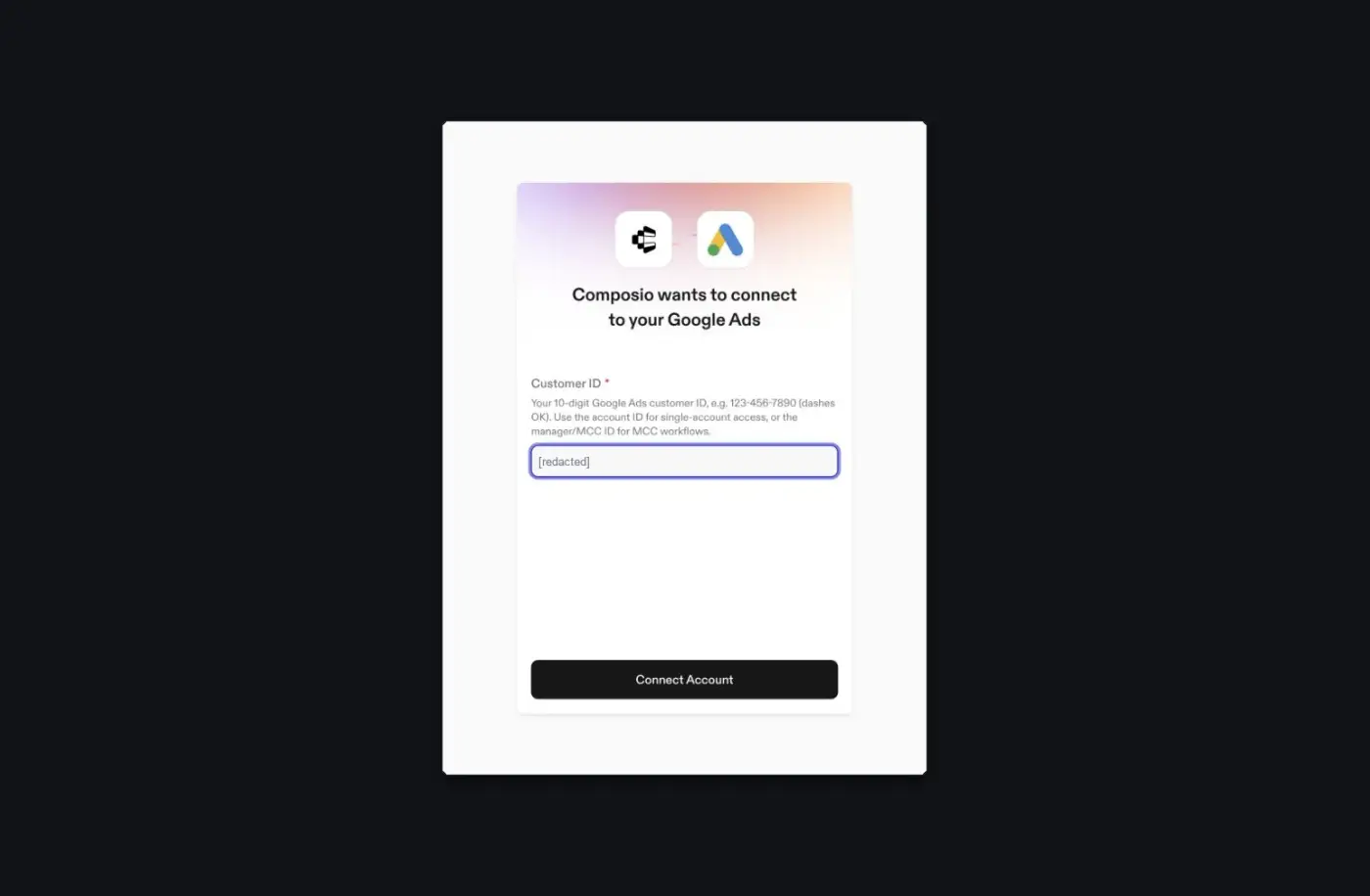
-
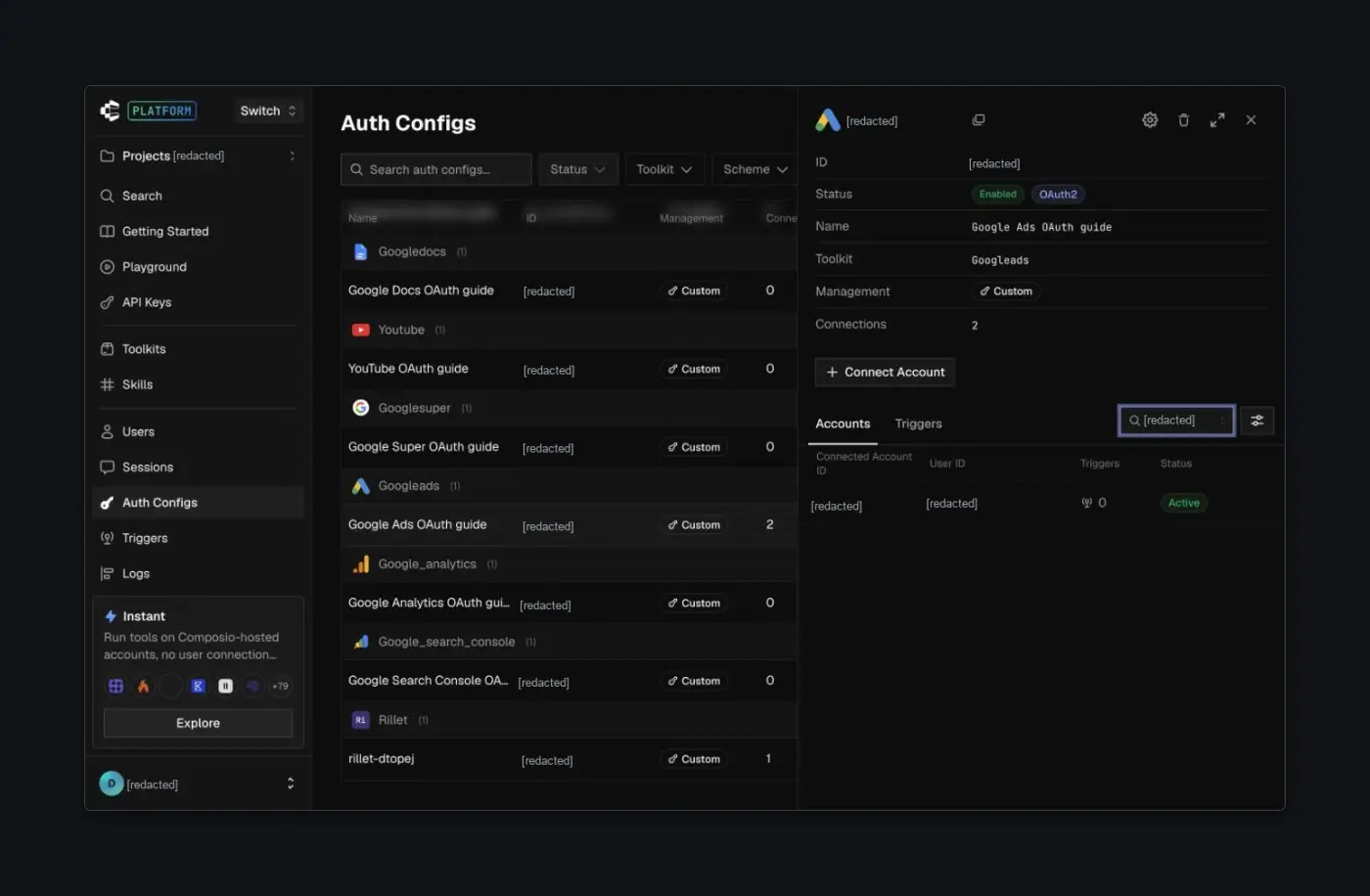
Open Accounts on the auth config and confirm the connected account shows Active. The auth config's own Enabled label doesn't confirm a connection.
For the general flow, see Custom auth configs.
Scopes
The default auth config requests https://www.googleapis.com/auth/adwords. It's the only Google Ads API scope and includes account-management access, so it isn't read-only. The user's Google Ads account role still limits what they can do. See Google's OAuth overview for Google Ads.
Short scope names on this page leave out the https://www.googleapis.com/auth/ prefix. When you paste a scope under Manually add scopes, use the full URL, for example https://www.googleapis.com/auth/userinfo.email. Scopes already written as a full URL, such as https://mail.google.com/, go in as shown.
Developer token
If the auth config form shows a Developer Token field, you can leave it empty. It's a legacy field kept for older auth configs, and Composio no longer sends it to Google. API access comes from the Google Cloud project that owns your OAuth client.
Publish and verify the app
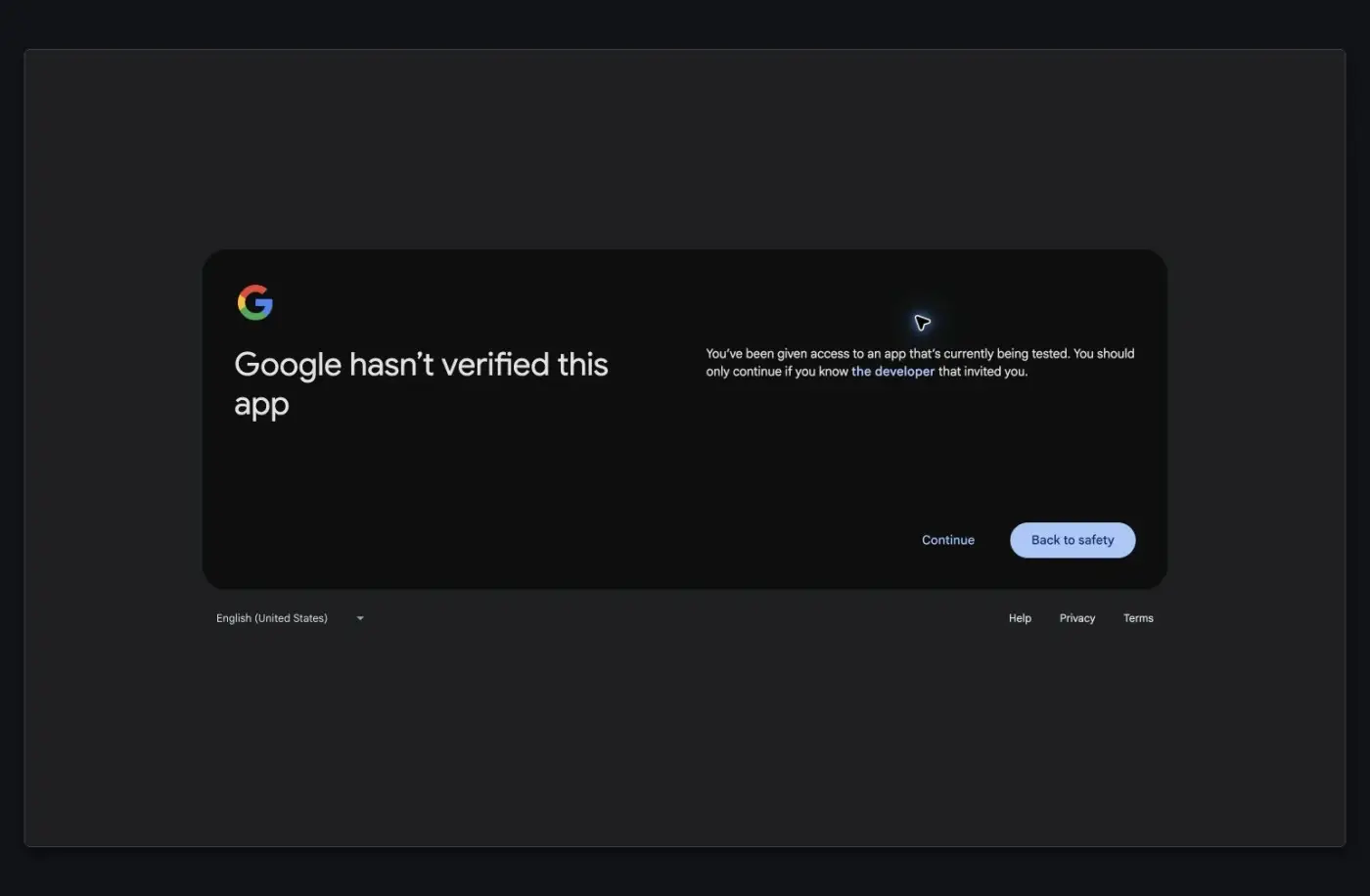
While an external app is in Testing, Google shows an unverified-app notice and refresh tokens expire after seven days, so users have to reconnect. Before you invite production users, select Publish app on the Audience page. A public app that requests sensitive or restricted scopes also needs Google's OAuth verification, which you start from Verification Center. Publishing doesn't complete verification on its own. Internal apps and apps in Testing can be exempt. See Google's verification requirements.
If you change the requested scopes later, reconnect the account so the user grants the new access.
What can cause Google Ads 429s?
A Google Ads 429 / RESOURCE_EXHAUSTED is an upstream Google Ads API limit, not a Composio billing-plan or tool-call quota. Google Ads enforces limits on the underlying developer token, account, request pattern, service, and resource usage.
This can happen with Composio-managed credentials or with custom Google Ads credentials. Reduce request volume, add backoff, simplify expensive queries, and use an owned Google Ads OAuth app/developer token for production isolation where possible.
Google Ads MCC/sub-account targeting
For Google Ads manager-account (MCC) setups, GOOGLEADS_LIST_ACCESSIBLE_CUSTOMERS can succeed while GAQL/reporting or campaign calls against a child account fail. Two common Google errors are:
- 403
USER_PERMISSION_DENIEDwith guidance that, when accessing a client customer, the manager customer ID must be set in thelogin-customer-idheader. REQUESTED_METRICS_FOR_MANAGERwhen metric fields are queried directly from the MCC manager account instead of a child/customer account.
Treat this as MCC targeting/account-context, not OAuth. Reconnecting alone does not fix it unless the user had connected the wrong account context.
Correct call shape:
- target child/customer account ID in the request path, for example
/customers/{child_customer_id}/googleAds:searchStream - manager/MCC customer ID in the
login-customer-idheader
Google Ads OAuth callback token-exchange failures usually point to bad credentials
The OAuth callback failed during token exchange error usually means the credentials used to complete the auth flow are incorrect, most often the client secret. Re-enter or update the client secret in the Google Ads auth config, make sure there are no leading/trailing spaces, and initiate a new connection.
What do custom Google OAuth apps need for white-label consent?
For Google toolkits, creating a new authConfig with the user's OAuth app credentials is not enough for full white-label consent. They also need to route the callback through their own domain using their own redirect URI so Google displays the configured consent screen for that OAuth app.