Twitter, Inc. was an American social media company based in San Francisco, California, which operated and was named for named for its flagship social media network prior to its rebrand as X.
Authentication DetailsComposio-managed OAuth not available
Frequently Asked Questions
How do I set up custom OAuth credentials for Twitter (X)?
Composio has no managed OAuth app for Twitter, so you need your own X developer app. X API usage follows X's access and billing requirements.
Create the X app
-
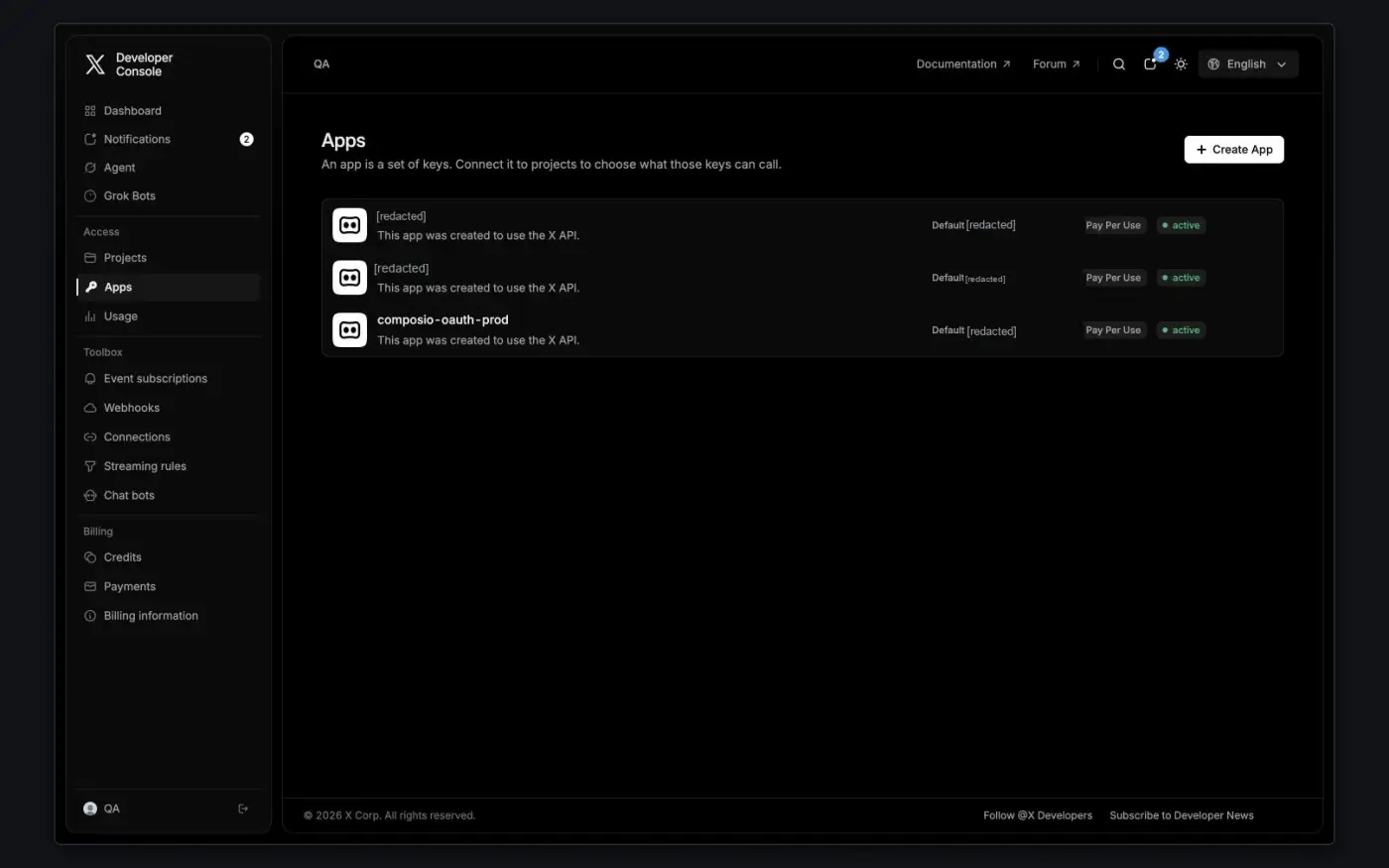
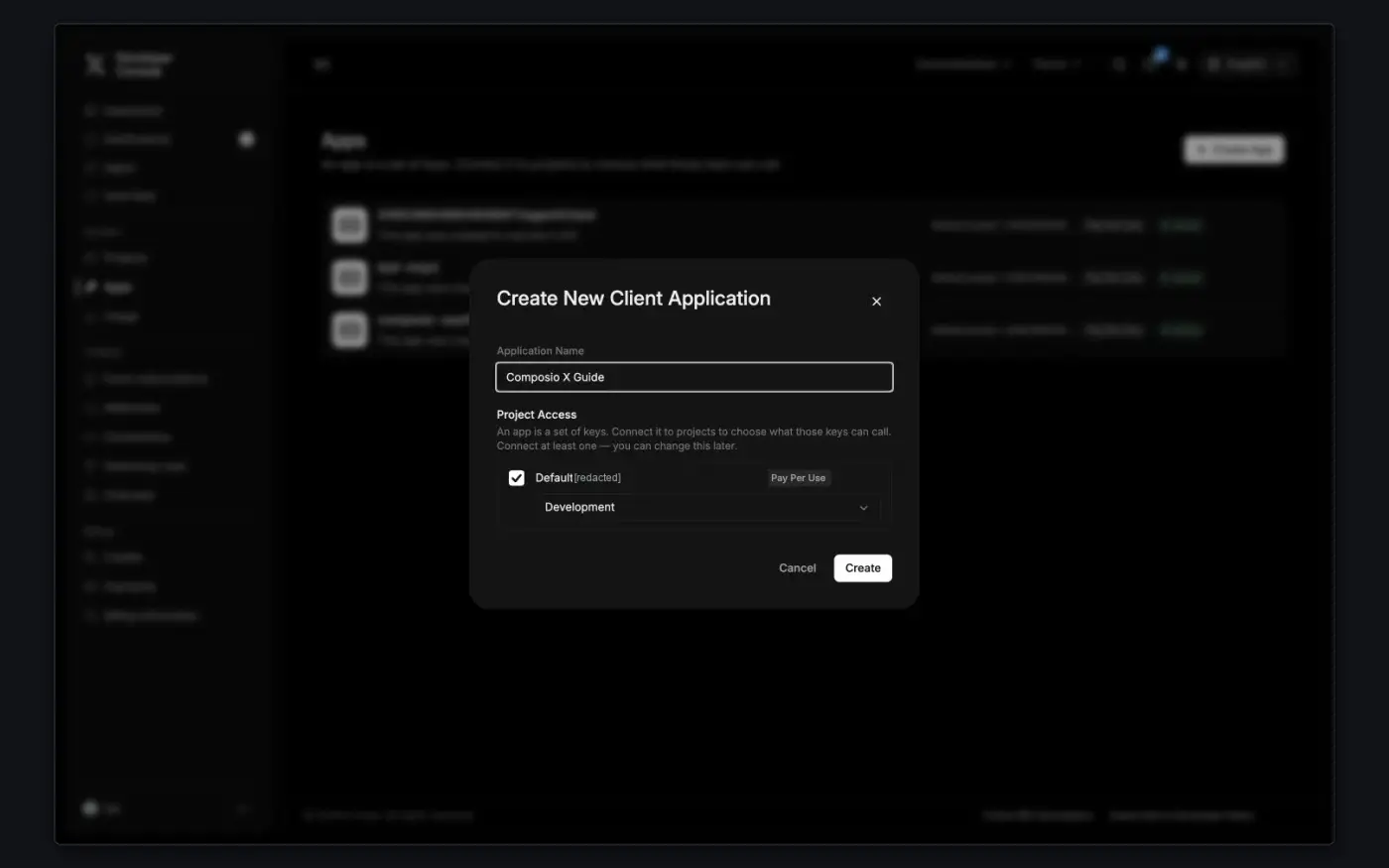
Sign in to the X Developer Console, open Apps, and click Create App. Enter an Application Name, select at least one existing project under Project Access, pick the environment, and click Create.
-
Open the app's Settings and find User authentication settings. In the older console, click Set up or Edit under that heading.
-
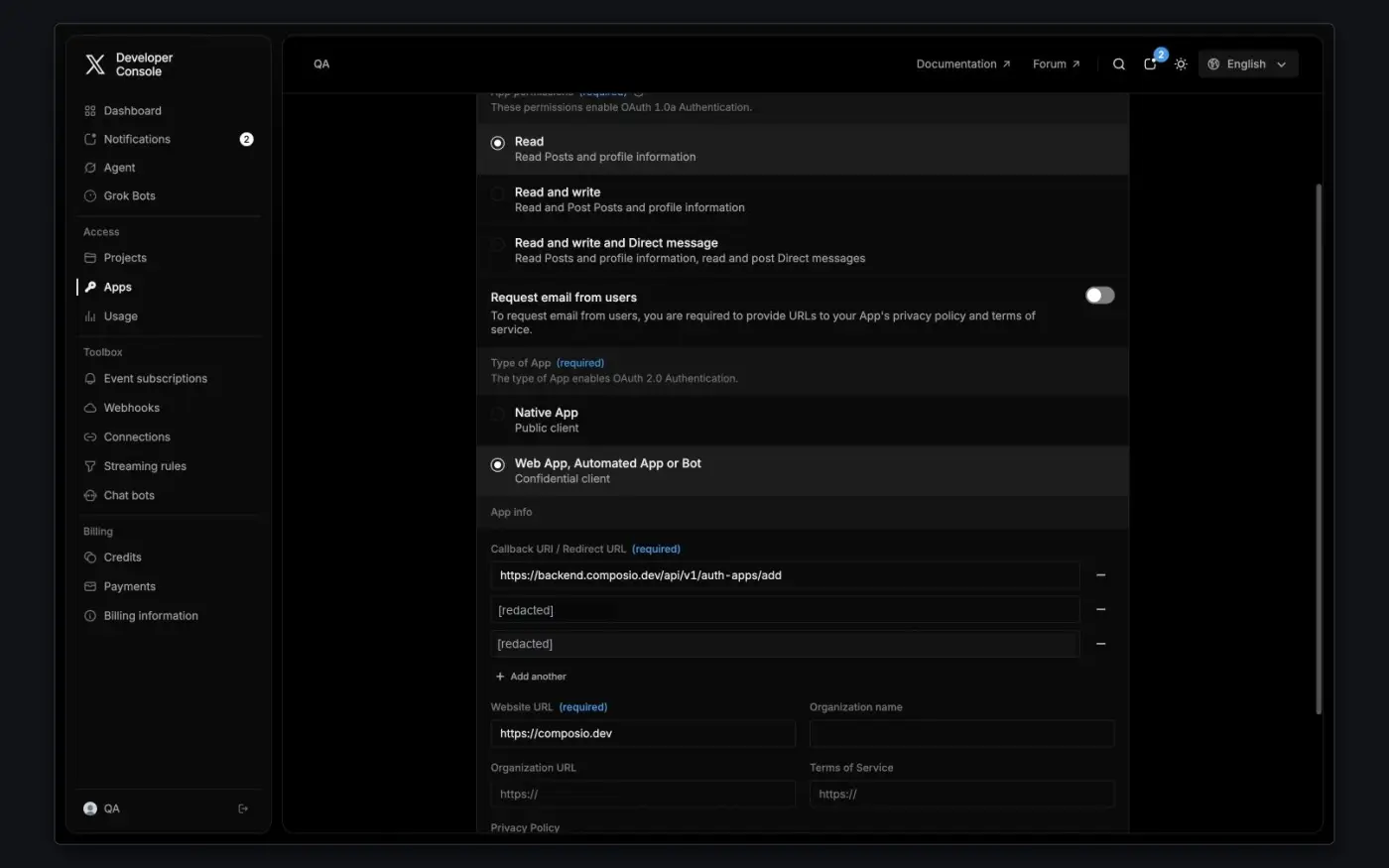
Under App permissions, choose the access your workflow needs. For Type of App, select Web App, Automated App or Bot. This confidential client type issues OAuth 2.0 credentials.
-
Under App info, set Callback URI / Redirect URL to
https://backend.composio.dev/api/v1/auth-apps/add. It must exactly match theoauth_redirect_urifield in your Composio auth config. Enter your public Website URL, fill in any other required fields, and click Save Changes.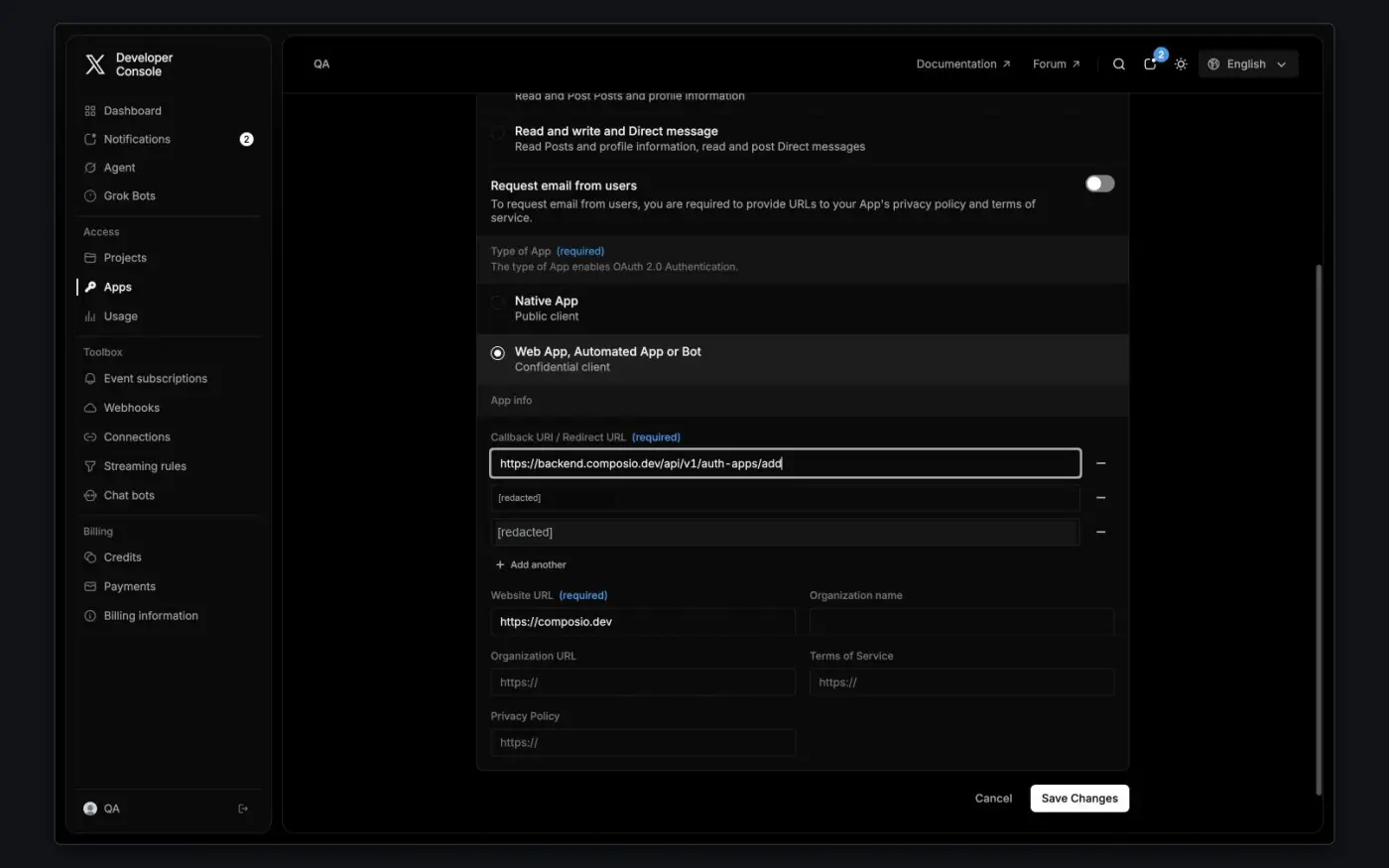
-
Open Keys & Tokens. Copy the Client ID and Client Secret under OAuth 2.0 Keys, and the Bearer Token under App-Only Authentication.
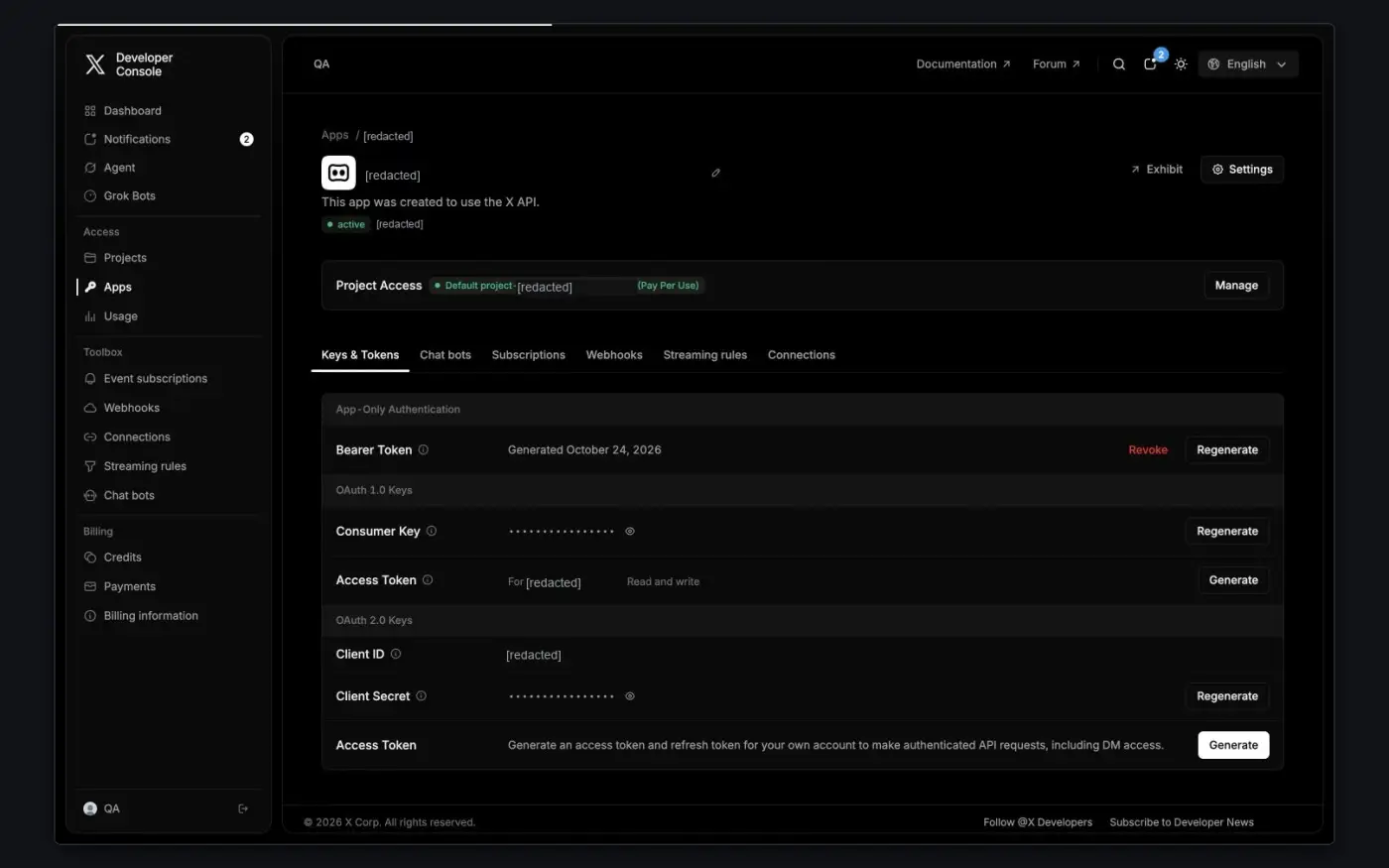
The API Key and API Key Secret shown when you create the app are not the OAuth 2.0 Client ID and Client Secret.
Create the auth config in Composio
-
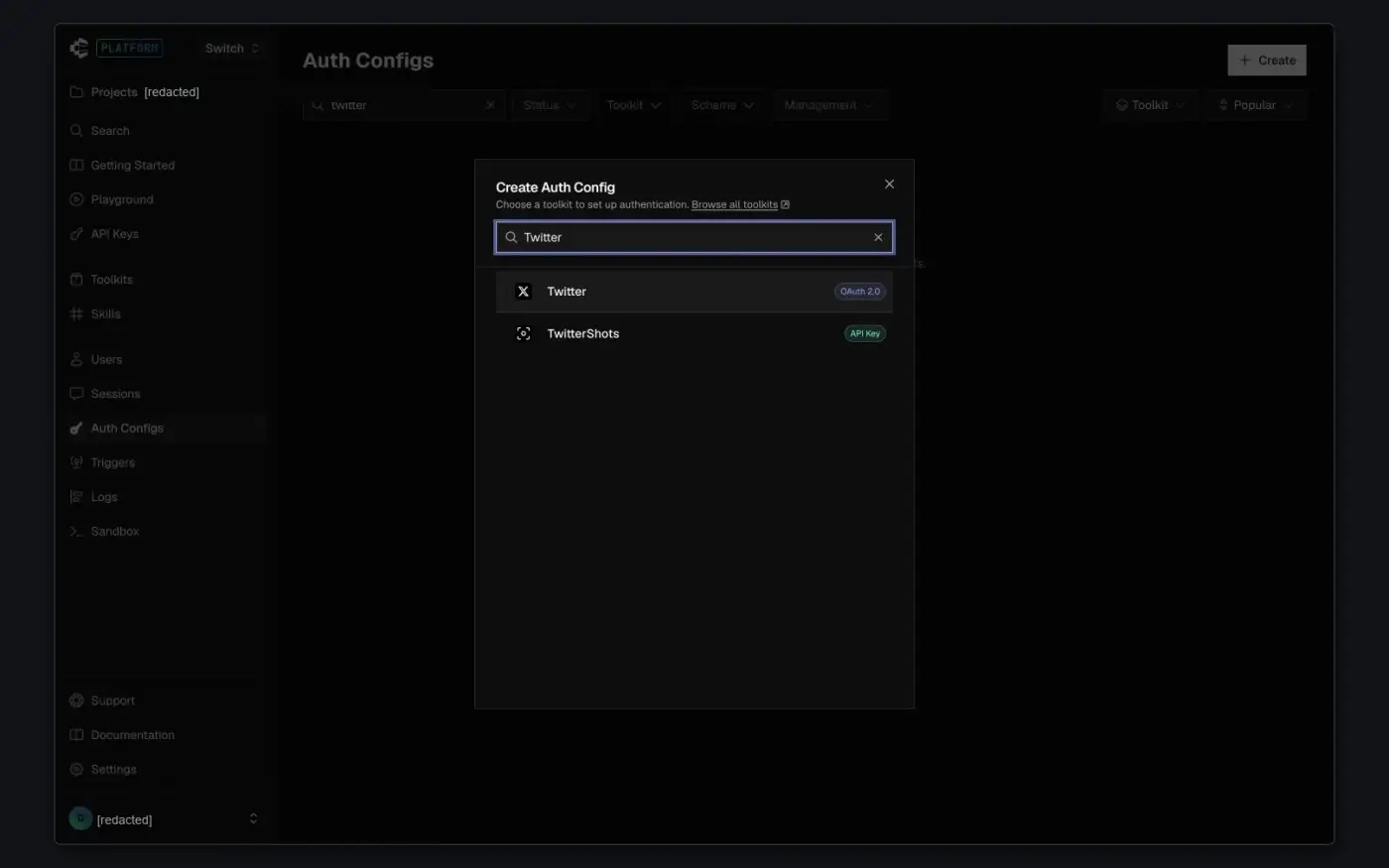
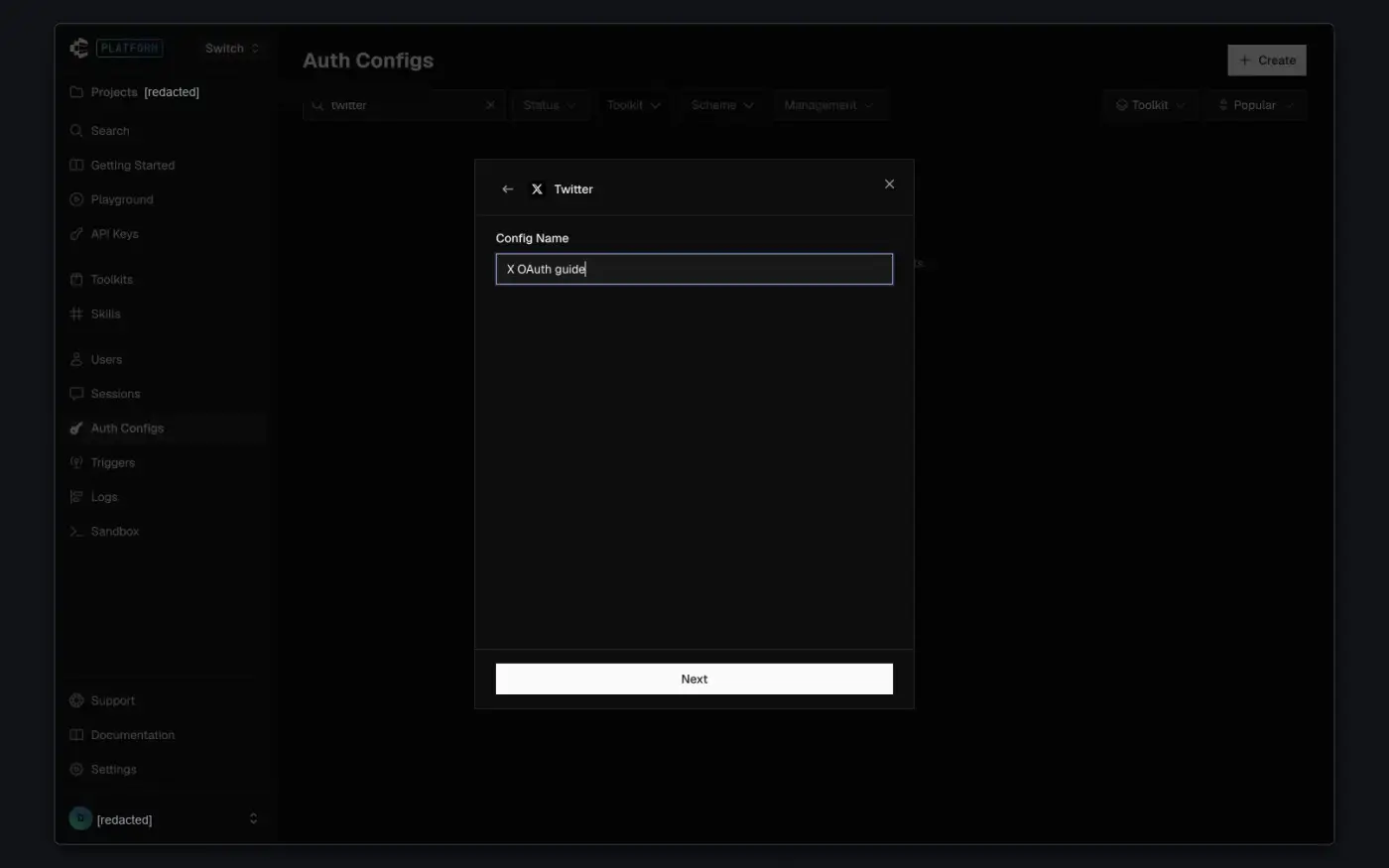
In the Composio dashboard, go to Auth Configs, click Create, and select Twitter.
-
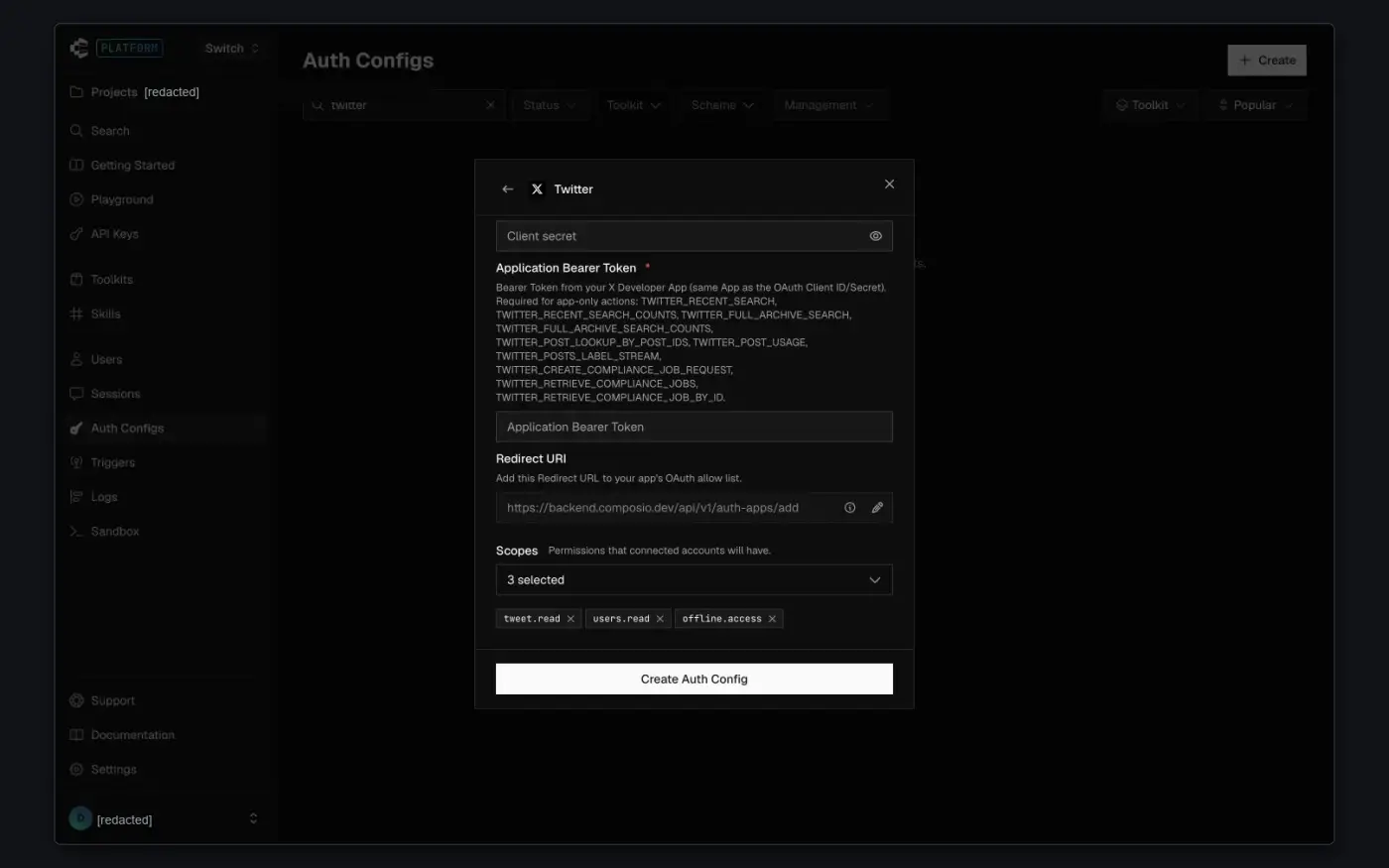
Use OAuth 2.0. Paste the Client id and Client secret, and paste the app-only Bearer Token into Application Bearer Token. All three values must come from the same X app. Composio uses the Bearer Token for app-only actions such as recent search and post lookup.
-
Trim the scopes to what your tools need (see below), then click Create Auth Config.
-
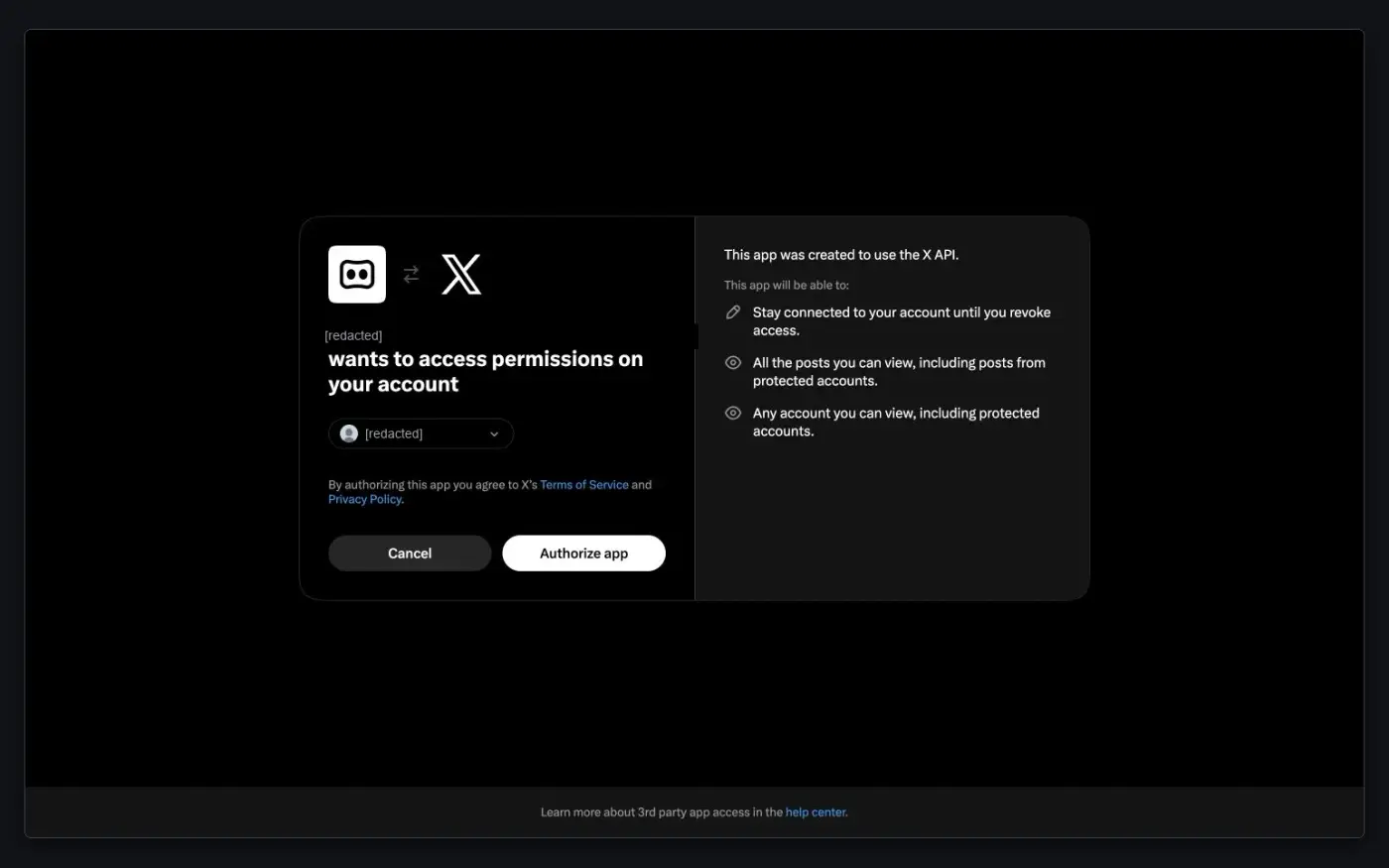
Click Connect Account, sign in to X, check the app name and permissions, and click Authorize app.
-
Open Accounts and confirm the connected account shows as Active. The auth config's Enabled label alone doesn't confirm a connection.
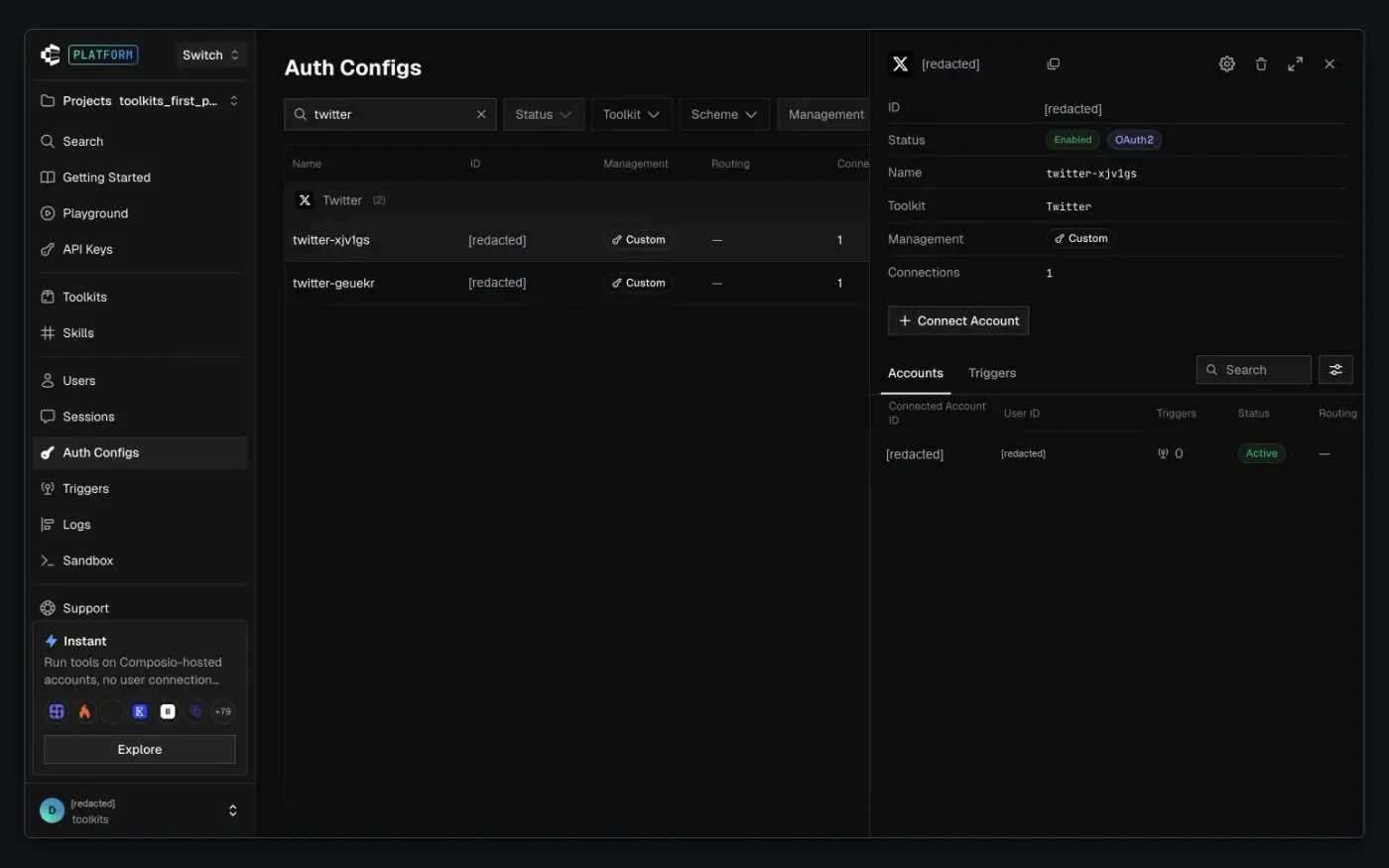
See Custom auth configs for the general flow.
Scopes
The default auth config requests a broad set that includes DMs, likes, lists, bookmarks, and media. Remove the ones you don't need:
tweet.readandusers.read: read profiles and posts.tweet.write: create posts.offline.access: lets Composio refresh access without another sign-in.
See X's endpoint-to-scope mapping for other endpoints. Changing scopes doesn't update existing connections; reconnect the account to grant the new set.
Troubleshooting
- Invalid client: use the OAuth 2.0 Client ID and Client Secret from a Web App, Automated App or Bot app, not the API Key and Secret.
- Callback mismatch: compare the full callback URL in X and in Composio.
- Missing refresh token: add
offline.accessand reconnect. - Credits or usage-limit errors: check the account's X usage and billing. OAuth scopes don't grant API access or usage credits.
Why are Composio managed credentials no longer available for Twitter?
As of February 2026, Composio managed credentials for the Twitter toolkit have been removed. You must now bring your own Twitter API credentials. To migrate:
- Create a Twitter Developer account and obtain API credentials from the Twitter Developer Portal.
- Set up a custom auth configuration with your credentials in Composio, as described in the setup question above.
If you were relying on managed credentials, your Twitter integrations will stop working until you configure your own. See the changelog entry for full details.
Why am I getting rate limit or "UsageCapExceeded" errors on Twitter?
Twitter enforces strict rate limits per app. Use your own OAuth app with appropriate rate limit allocations for production workloads.
Why can't I access certain Twitter API endpoints?
Twitter enforces plan-based access tiers. Check your project's product and plan for the required permissions at the Twitter Developer Portal.
Why am I getting 403 errors on Twitter API calls?
Your developer account or project may not have the required access level for the endpoint. Check your enrollment and access tier in the Twitter Developer Portal.
What length limits apply to Twitter/X posts?
Twitter/X enforces strict post length limits. For normal posts, keep the content under 280 characters and follow X's official character-counting behavior, since URLs, Unicode, and special characters may be counted by provider-specific rules.
client-not-enrolled and App not linked to project usually point to Twitter developer app/project setup issues
These errors usually mean the Twitter/X developer app is not correctly connected to a Twitter developer project, or the OAuth app configuration is stale after X's API model changes. Verify the app is linked to a project, configured according to the Twitter setup guide, and aligned with the current X API requirements. If the connected account is already EXPIRED, recreate the connection after fixing the app configuration.