Data retention and handling
Composio stores logs for tool executions so you can observe and debug your agents. This retention policy applies on every plan.
Customer data vs. your end users' data
Throughout this guide, you are the Composio customer. Your end users are the people your agent acts on behalf of. Each end user is identified by the user_id you provide. Composio stores this value as supplied and uses it to associate connected accounts, sessions, and execution logs.
What Composio stores
Composio creates logs for tool executions and trigger events. These logs contain:
- For tool executions, the toolkit and action, execution status, connection and auth-config IDs, supplied
user_id, timing, and runtime/source. - By default, the request arguments and response data for each tool execution.
- For trigger events, similar audit metadata and, by default, the trigger payloads.
How long logs are retained
Tool execution logs and trigger event logs are retained for up to one year, after which they are automatically deleted.
When an organization is deleted, Composio deletes its execution logs, including request and response payloads, within 30 days.
Model training
Composio does not use request arguments, response data, or trigger payloads to train or improve AI or machine learning models, on any plan.
Composio may use execution metadata to improve the platform, train models, or produce aggregate analytics, but only after de-identifying it. Execution metadata is the toolkit and action, status, error codes, timing, and counts. De-identification removes organization, project, user, and connected-account identifiers and IP addresses. Composio may keep de-identified metadata indefinitely, and it never contains payloads or error message text. See the Terms of Service, Privacy Policy, and Data Processing Addendum.
Your account data
Composio keeps account data about your organization and its members until you ask for it to be deleted. Members who stop using Composio are deactivated and receive no marketing emails or product updates. To permanently delete account data, email support@composio.dev. Composio completes deletion within 30 days and keeps only a hashed email address to suppress future emails, plus records the law requires, such as billing records.
How long files are available
When a tool uses or returns a file (an attachment, image, document, export, and so on), Composio stages it in temporary object storage and shares it through a presigned URL. The URL is valid for 1 hour by default. You can configure this URL TTL per project in Project Settings, up to 24 hours.
Presigned URL expiry and file deletion are separate. When the URL expires, the link stops resolving, but that does not delete the underlying object. Files staged for tool execution are automatically deleted from temporary object storage after 24 hours.
Workbench storage has two separate lifecycles:
- Files written to
/mnt/filesare backed by temporary object storage and are automatically deleted after 24 hours. - Other sandbox files, variables, and runtime state are temporary and may be cleared after approximately 12 hours of inactivity.
Stop storing payloads with Zero Data Retention
To stop storing request and response payloads for a project, turn on Zero Data Retention (ZDR) in Project Settings > General. Organization admins can also turn it on for every project in Organization Settings > Billing. With ZDR on, the log for each covered call keeps metadata only. ZDR is available on paid plans for a usage-based price and included on Enterprise.
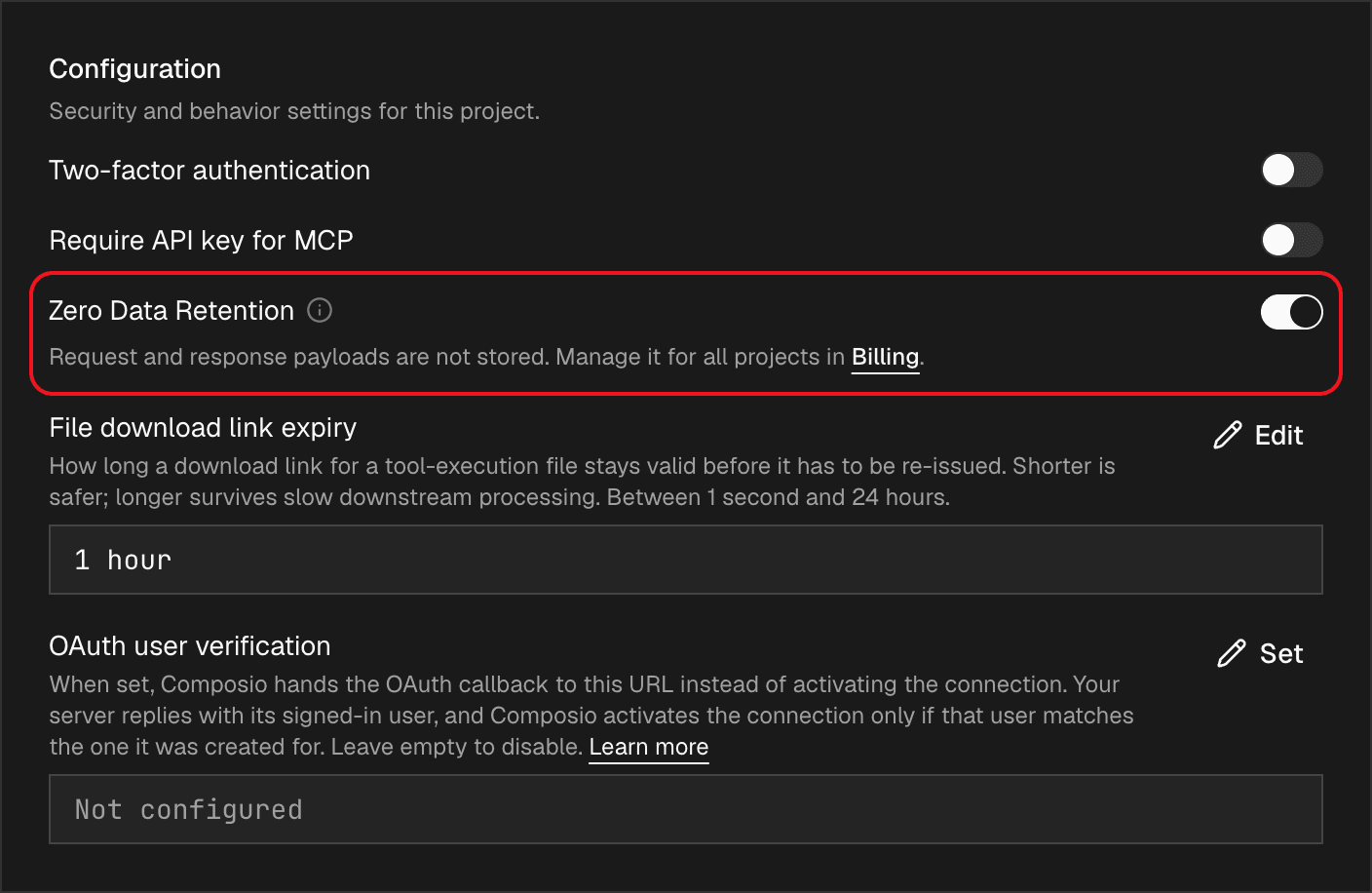
ZDR covers tool calls and Proxy Execute requests. See what ZDR does not cover.
Where your data goes
Whether or not ZDR is on, data can pass through the following locations during execution:
- The destination provider that receives the tool call.
- Composio's execution infrastructure while the call runs.
- Temporary object storage for files used or returned by tool calls. See How long files are available.
- Your configured trigger destinations, which receive trigger events in real time.
- An isolated third-party code sandbox, if you use Workbench or remote code execution. Ordinary Python or shell execution does not inherently send code or sandbox files to an LLM provider. Model-provider processing occurs only in the cases described below.
When Workbench uses an LLM
When a task requires advanced processing, the agent or MCP client may use Workbench and call invoke_llm from the submitted code, for example to summarize, analyze, extract, or generate content. Only the information passed to invoke_llm is sent to the model provider. Sandbox files and previous results are not sent unless the submitted code includes them.
There is one separate case: if submitted Python contains a syntax error and automatic repair is enabled, Composio may send the code and error details to the configured model provider to fix it before execution. Valid Python and ordinary shell commands do not trigger this repair.
ZDR controls what Composio stores, not whether data is processed during execution. For the current list of our sub-processors and our data-handling terms, see the Composio Trust Center.
Stronger guarantees
If your organization needs shorter retention windows, contact sales. For our data-handling policies and sub-processor list, see the Composio Trust Center.