Move to your own OAuth app
Use this guide when you're ready to move a toolkit to your own OAuth app, for example for dedicated rate limits or your own name on the consent screen. Managed connections keep working while you switch, so you can move on your own schedule. To decide whether to move, read Managed vs custom auth and Avoid and recover from rate limits.
You move one toolkit at a time. Each toolkit gets its own auth config, so Gmail can move while Slack stays on the managed app.
What carries over
- Your user IDs, sessions, and agent code. Only the auth config a session uses for the toolkit changes.
- Existing connected accounts. They keep working and refreshing on the managed auth config until you disable or delete them.
- Token custody. Composio still stores and refreshes tokens for connections on your own app. See OAuth app ownership and token custody.
What doesn't carry over
Existing users must reconnect. A provider issues OAuth tokens to a specific client ID, so tokens granted to Composio's app only work with Composio's app. Your app can't refresh or reuse them.
You also can't export managed tokens and import them under your new config. Connected-account API responses redact credential fields, and reading account state isn't a supported token-export path. Importing existing connections only covers credentials your application already holds.
Trigger instances belong to a connected account, so each reconnected user needs new triggers too.
How the move works
Run both configs side by side. New users and users who have reconnected use your app. Everyone else stays on the managed app until they reconnect.
Migrating
Create an OAuth app in the provider's developer portal. Set its name, logo, support details, and the scopes your product needs. Step-by-step guides: Google | GitHub | Slack | HubSpot | All toolkits
You add the redirect URI in the next step, once Composio shows it to you.
Start provider verification early
Some providers review apps before real users can authorize them. Google, for example, requires verification for sensitive and restricted scopes, and that review can take weeks. Submit your app before you plan to switch, and keep users on the managed app until the provider approves it.
In the dashboard's auth configs, click Create and select the toolkit. Choose OAuth2, enable Use your own developer credentials, and enter your app's client ID, client secret, and scopes.
Copy the Redirect URI from the form into your provider app's list of authorized redirect URIs. The two values must match exactly. See Using your own OAuth apps for which callback URL to use.
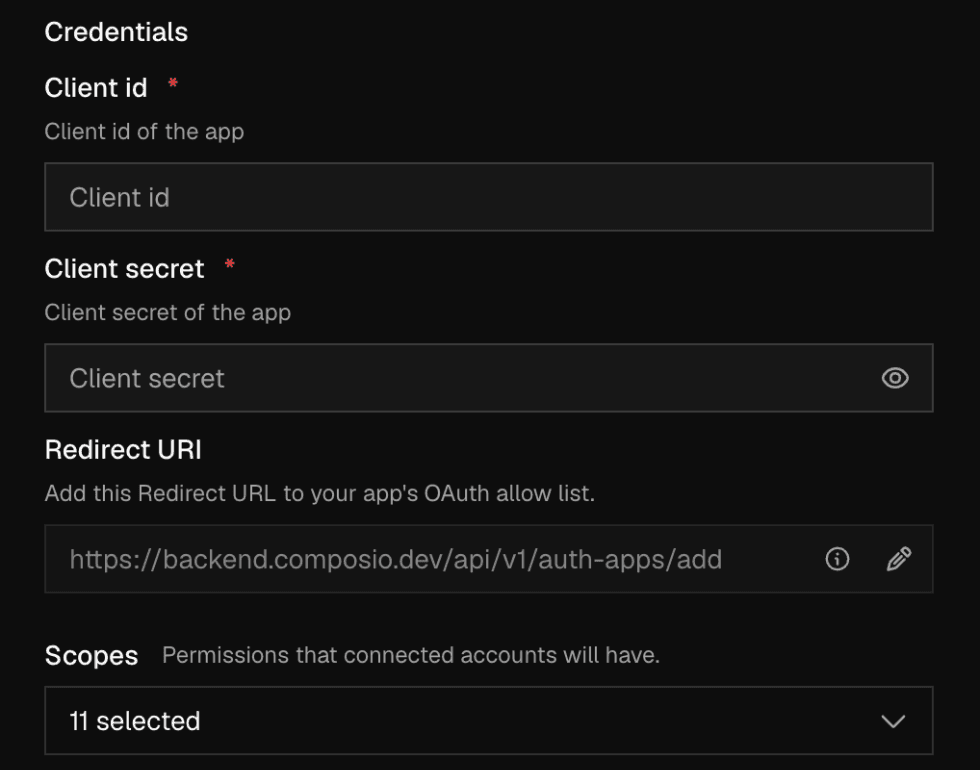
Click Create Auth Config and copy the new ac_... ID. Also note the ID of the managed auth config your existing users connected through. The dashboard marks it as Managed.
To create the config in code instead, see Programmatic auth configs.
A session uses a custom auth config only when you pass it in auth_configs (Python) or authConfigs (TypeScript), keyed by toolkit. The session then finds or creates the user's connection on that config. See Precedence.
That means a session pointed at your app asks an existing user to connect again. Make this change once the provider has approved your app. To keep existing users working, choose the config per user: your app for anyone with an active connection on it or no managed connection at all, and the managed config for everyone else.
from composio import Composio

composio = Composio()

OWN_APP_CONFIG = "ac_your_own_gmail_config"
MANAGED_CONFIG = "ac_your_managed_gmail_config"


def has_active_connection(user_id: str, auth_config_id: str) -> bool:
    accounts = composio.connected_accounts.list(
        user_ids=[user_id],
        auth_config_ids=[auth_config_id],
        statuses=["ACTIVE"],
    )
    return len(accounts.items) > 0


def gmail_auth_config_for(user_id: str) -> str:
    if has_active_connection(user_id, OWN_APP_CONFIG):
        return OWN_APP_CONFIG
    if has_active_connection(user_id, MANAGED_CONFIG):
        return MANAGED_CONFIG
    return OWN_APP_CONFIG


session = composio.create(
    user_id="user_123",
    auth_configs={"gmail": gmail_auth_config_for("user_123")},
)
Toolkits you leave out of auth_configs keep their current behavior. Store which config each user is on in your own database if you'd rather not look it up on every session.
Ask each existing user to connect again, for example with an in-app banner or at their next sign-in. Generate a Connect Link on your new config:
from composio import Composio

composio = Composio()
request = composio.connected_accounts.link(
    user_id="user_123",
    auth_config_id="ac_your_own_gmail_config",
    callback_url="https://your-app.com/connections/callback",
)
Send the browser to the returned redirect URL. The user now sees your app's name on the provider's consent screen. Once the new connection is ACTIVE, the routing from the previous step sends that user's sessions to your app.
Use the same user ID the managed connection has. A different user ID creates a connection that your sessions and triggers won't match to the existing user.
Triggers stay attached to the managed connected account. List them and create each one on the new connected account with the same trigger config, delivery type, and polling interval. Keep a map from each old trigger ID to its new one:
from composio import Composio

composio = Composio()

old_triggers = composio.triggers.list_active(
    connected_account_ids=["ca_old_managed_account"],
)

new_trigger_ids = {}
for trigger in old_triggers.items:
    new_trigger = composio.triggers.create(
        slug=trigger.trigger_name,
        connected_account_id="ca_new_own_app_account",
        trigger_config=trigger.trigger_config,
        # A fallback to polling is left for Composio to decide again
        type=None if trigger.fallback_reason else trigger.type,
        polling_interval=trigger.polling_interval,
    )
    new_trigger_ids[trigger.id] = new_trigger.trigger_id

# After your event filters use the new IDs, disable the old instances
for old_trigger_id in new_trigger_ids:
    composio.triggers.disable(trigger_id=old_trigger_id)
Results are cursor-paginated. If the list returns a next cursor, fetch the next page as shown in Listing active triggers.
Events from the new triggers carry the new trigger ID and connected account ID. Before you disable the old instances, update anything that matches on the old values: event subscriptions filtered by trigger ID, webhook handlers, and any stored links between a user and their trigger or connected account.
Disable the old trigger rather than deleting it until you've confirmed events arrive from the new one. Otherwise both instances fire for the same event while they overlap.
After a user's new connection works, disable their managed connected account. Disabling an account also disables its triggers, and you can re-enable it if something goes wrong.
Once you're confident, clean up in this order:
- Optionally, revoke the upstream token where the toolkit supports it. Revoking needs the connected account to still exist, so do it before you delete.
- Delete the old triggers.
- Delete the managed connected account. This removes it from Composio and is permanent.
When no active connections remain on the managed config, every user is on your app. You can then pass your config in every session and drop the routing logic.
Checklist
- Your OAuth app is registered, and the provider has approved it for the scopes you need.
- The provider's authorized redirect URI matches the one in your custom auth config.
- Sessions route each user to the right config, and new users land on your app.
- Existing users have a way to reconnect, under the same user ID.
- Triggers exist on each new connection, and the old ones are disabled.
- Managed connected accounts are disabled or deleted once their replacements work.
- A connected-account list filtered to the managed config shows no active accounts.